Printing Your BIM Press Badge
Before printing your Press Badge, you must set up your Contributor Profile. For information on setting up your profile, see “BIM – Add or Edit Your Contributor Profile”
1. Select Press Badge from your Contributor Dashboard
2. Review the information and update if needed
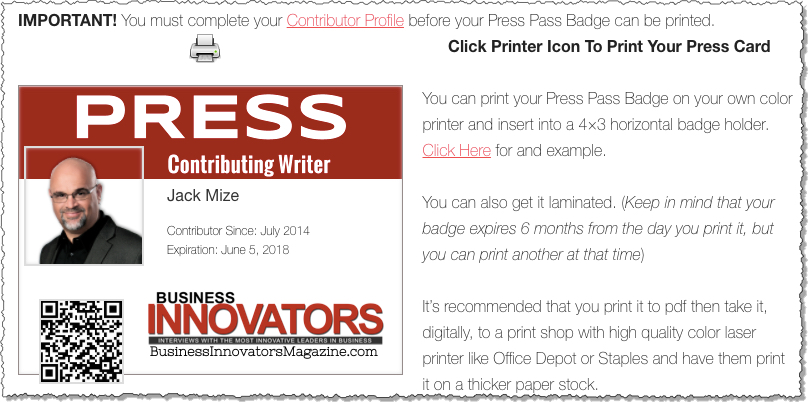
3. Click on the Print Icon
You can print your Press Pass Badge on your own color printer and insert into a 4×3 horizontal badge holder. Click Here for an example.
You can also get it laminated. (Keep in mind that your badge expires 6 months from the day you print it, but you can print another at that time.)
It’s recommended that you print it to pdf then take it, digitally, to a print shop with high-quality color laser printers like Office Depot or Staples and have them print it on thicker paper stock.
TROUBLESHOOTING
The pass background didn’t print
If you tried printing your pass to your printer or pdf and the background doesn’t show, the next step is to try selecting the “Print Background Images” option on your printer popup.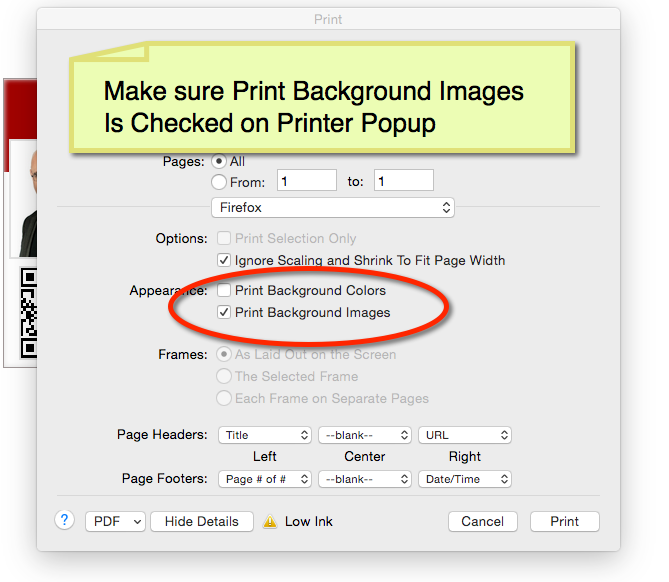
My Profile Picture isn’t showing on the the Press Badge
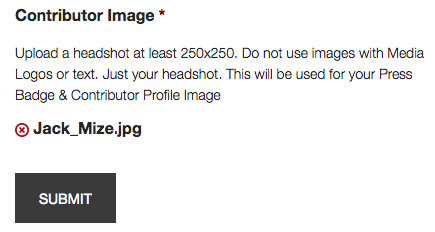
If you uploaded your profile picture before we added the Press Badge feature, you need to re-upload your Contributor Image on Your Profile on your dashboard.