After selecting your trim size, you need to set your document layout preferences.
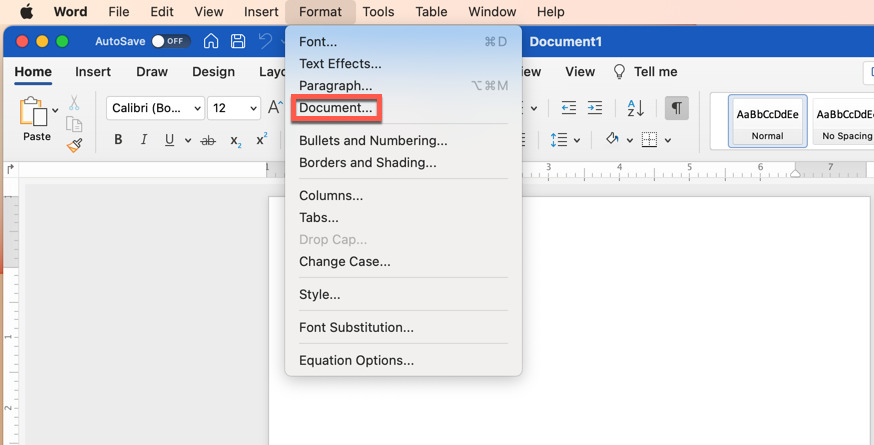
From the main menu in Microsoft Word, select Format – Document
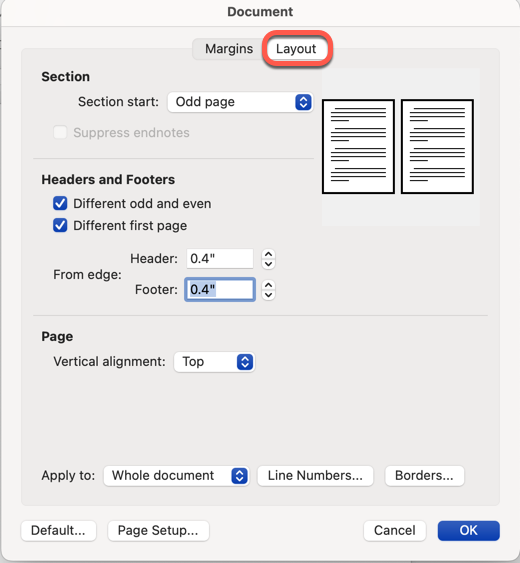
On the “Layout” tab, select the following options:
- Section Start – Odd Page – Chapters typically begin on an odd-numbered page (Recto) so that they are on the right-hand side when a book is open.
- Headers & Footers – Check the options for Different Odd & Even and Different First Page
- Set “from edge” to .4 for header and footer
- Page – Vertical Alignment should be set to Top
- Make sure Apply To is set to Whole Document
- Click “OK”
Next, toggle to the “Margins” tab and select the following options:
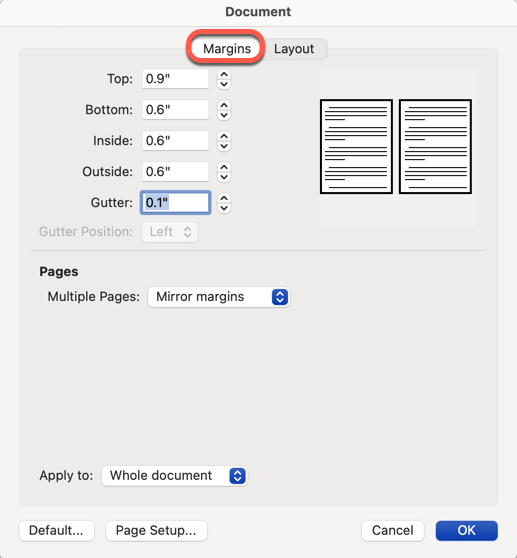
Margins (recommended – your gutter margins may change depending on the page count)
- Top – 1.0
- Bottom – .6
- Left – .6
- Right – .6
- Gutter – .1
Pages
Next to multiple pages, always select “Mirror Margins” for books.
Click “OK”
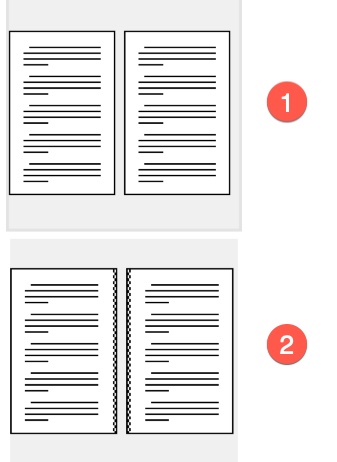
Gutter Margins
 |
|