When formatting books using Microsoft Word, you have the option to insert Page Breaks or Section Breaks to start the text on the following page.
It’s better to use Page Breaks or Section Breaks instead of inserting hard paragraph returns to move the text to the next page. If any text above the hard returns is modified, it will shift any text below it.
If you want the next paragraph to start on the next page, insert a Page Break.
If you want to start a new chapter or insert a page with special document properties, insert a Section Break.
Breaks are inserted from the Layout Tab on the main Microsoft Word menu at the top of the screen. Each type of break is described in this document.
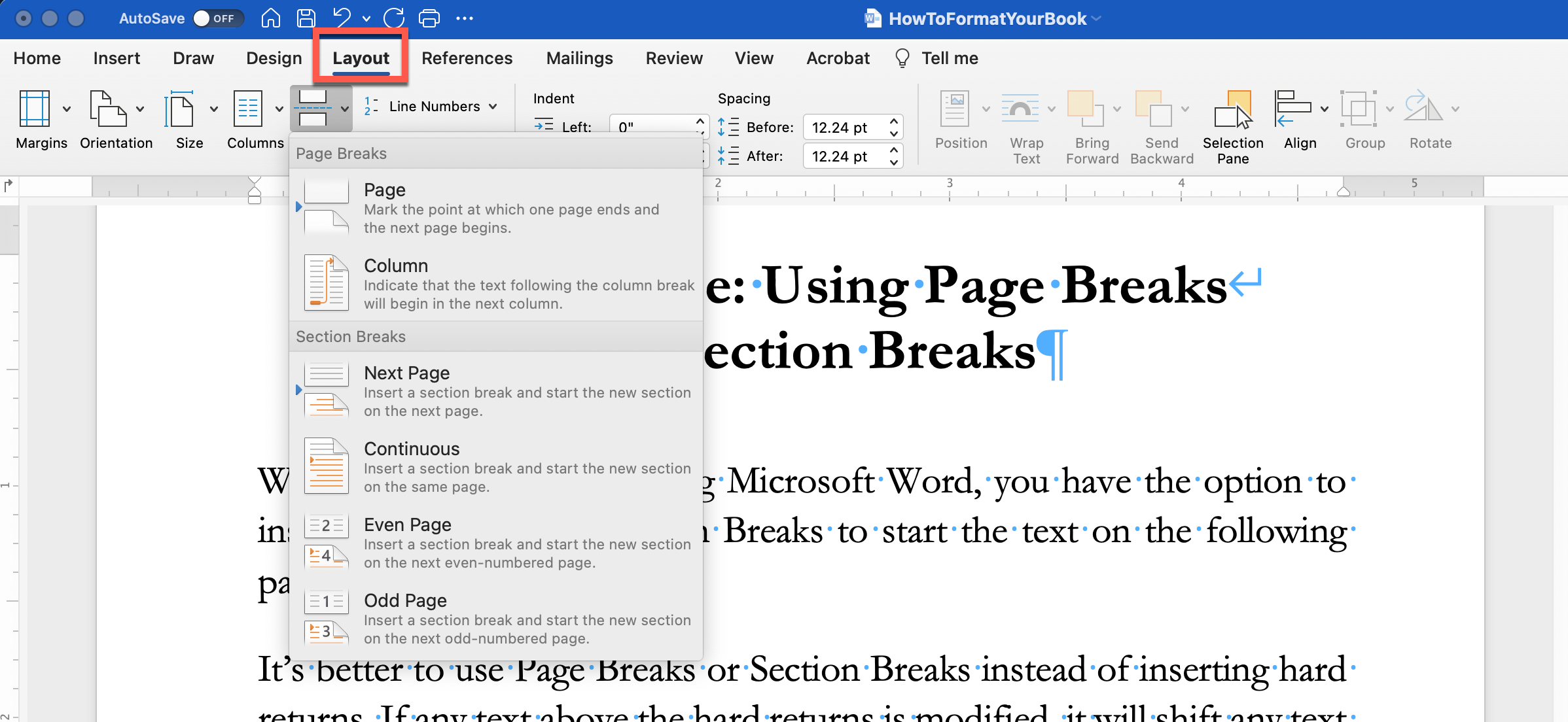
When to Use Page Breaks
To ensure your text will start at the top of the page, insert a Page Break.
If your document has columns and you want the text to begin at the top of the next column, insert a Column Break.
When to Use Section Breaks
- To separate each chapter in a book.
- Modify the header/footer information for each section.
- Change the page layout (margins, page orientation, columns, etc.)
- Change the page numbering format. For example, you may want to use roman numerals for front matter and cardinal numbers for the chapters.
Types of Section Breaks
Next Page
This type of break will start a new section on the next page. Use this option if you want to change the layout of one page.
Continuous
This type of break is used to start a new section without starting a new page. A good example of when you would use this would be when you want to insert columns on a page.
Even Page
This creates a new section on the next even-numbered page.
Odd Page
This creates a new section on the next odd-numbered page.
Tip: Ensure you have “Show Paragraphs” selected so you can see where page breaks and section breaks have been added to your document.
The images below show how page breaks and section breaks appear.

