Headers and Footers in your document provide spaces to add text that you want to appear on every page in the document. You can change the text for different parts of your document by using Section Breaks. Also, you can choose sections where you don’t want the header or footer information to appear.
For example, on the title and copyright pages, you probably don’t want headers or page numbers.
Also, on the first page of each chapter, you don’t want headers.
In this lesson, we chose to include the author’s name, chapter titles, and page numbers in the headers.
Headers on odd-numbered pages are right-aligned so that the page numbers will be near the right margin since odd-numbered pages are on the right side of the book.
Headers on even-numbered pages are left-aligned so that the page numbers will be near the left margin since odd-numbered pages are on the left side of the book.
In some books, we will center the headers and footers and include the author’s name and chapter title in the header and the page number in the footer.
You can style header and footer text like any other style in your document (bold, italic, underline, expanded, condensed, etc.)
Headers and Footers
The Header and Footer formatting pane will appear when you double-click in the header area of the document.

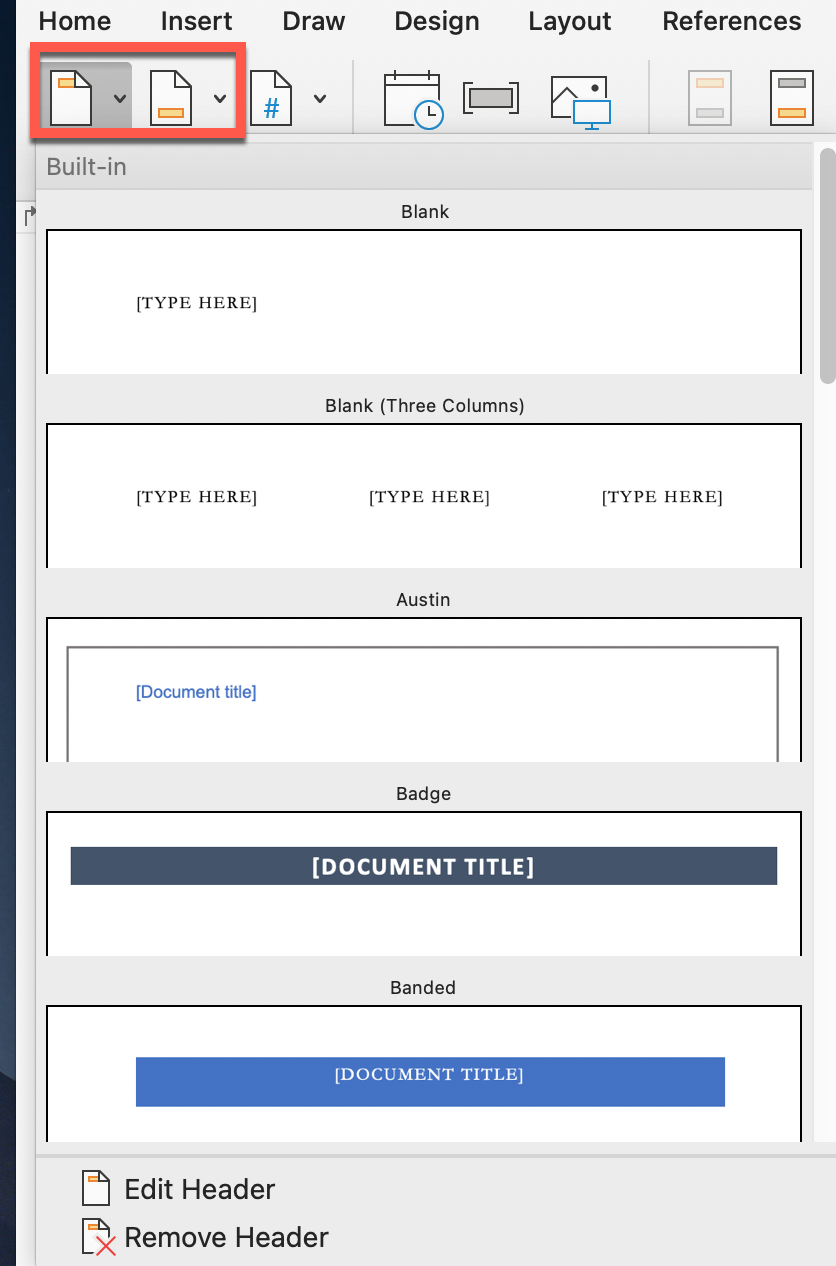
Predefined Header and Footer Styles
By clicking on the dropdown arrow next to “Header” or “Footer” in the format pane, you will see some default options you can choose from if desired.
Page Numbers, Dates/Times, and Images
Each of these dropdown menus in the Header Format Pane will give you options to insert and customize these in your headers and footers.
To start page numbering at “1” in your first chapter, click on the Header in that chapter. From the Header Format Pane, select the dropdown arrow next to “Page Number” and choose “Format Page Numbers…”
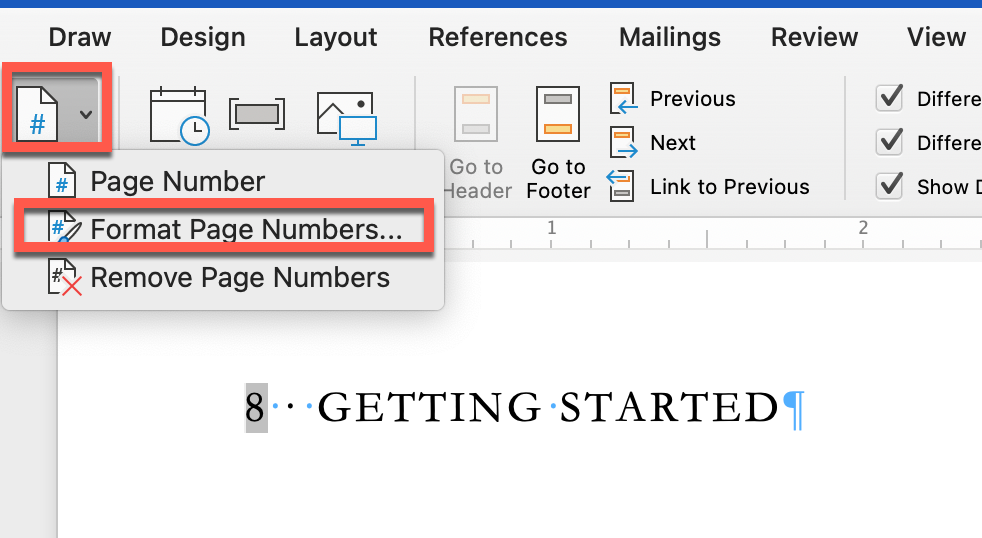
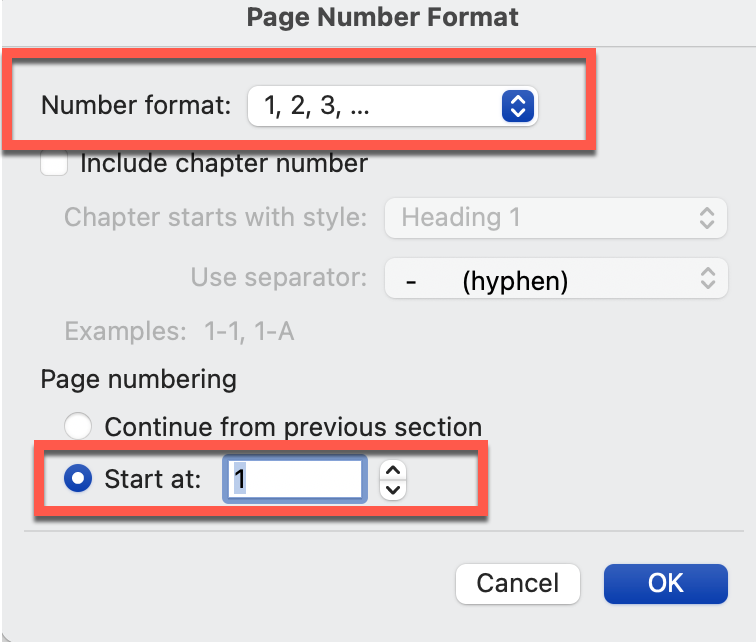
- Confirm that the number format is correct (typically 1, 2, 3, …) Roman Numerals may be used in the front matter section, though.
- Set the “Start at” field to “1.”
- The first page of the section you are in will start at “1.” Any additional sections should be set to “Continue from previous section,” which is the default so you won’t have to update each section.
Previous and Next
These options allow you to navigate to the next or previous header/footer in the document.
Link to Previous
This is where many authors get confused when working with headers (and footers.)
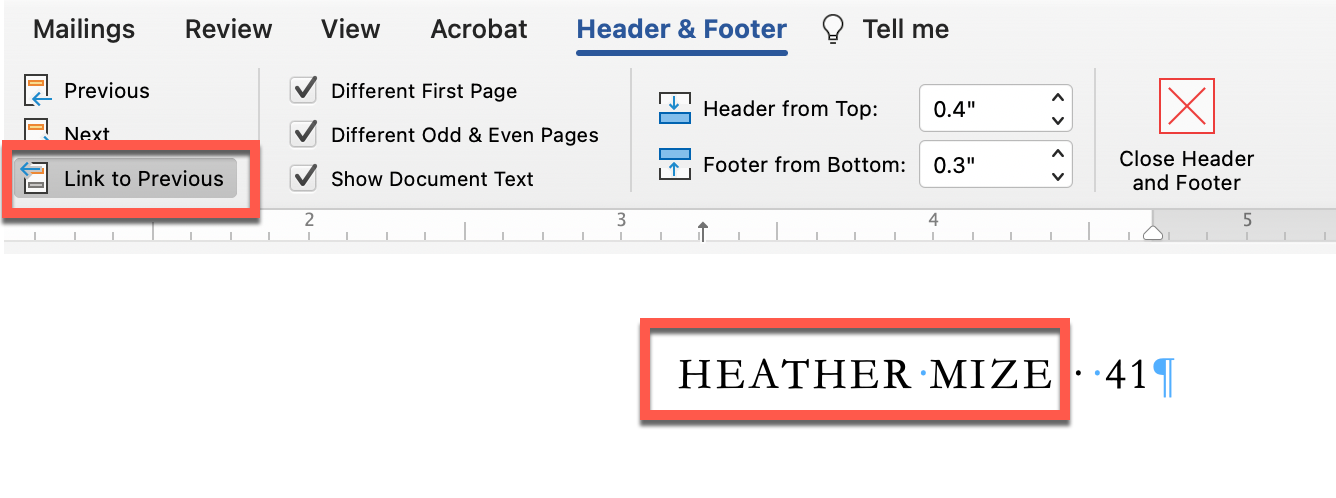
In this example, we are using the Author’s Name on the odd-numbered pages, so they will appear on the right side of the book. When we double-click at the top of the page in the header area, the Header & Footer style pane will open.
Important: Ensure that “Different First Page” and “Different Odd & Even Pages” are checked.
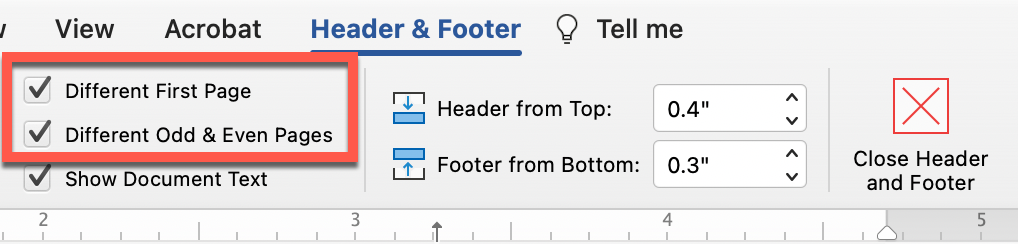
Typically, the first page of a chapter does not include headers, so by checking “Different First Page,” Word will automatically omit headers from the Chapter Title page.
Because we want the author’s name on ALL odd-numbered pages in ALL sections, we need to ensure “Link to Previous” is selected. Then, we can add the author’s name next to the page number.
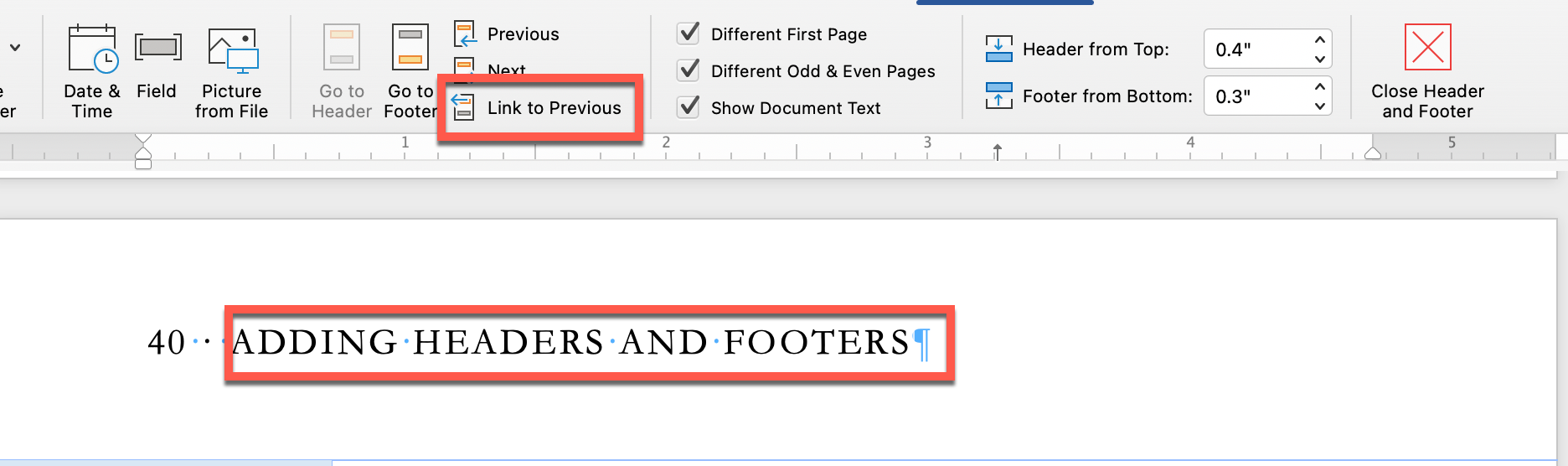
Since we want each chapter title to appear on the even-numbered pages within that chapter, we need to click at the top of the document and open the Header and Footer style pane. Uncheck “Link to Previous.”
Then, add the current chapter title. You can use the Previous and Next buttons to navigate to other sections and update the chapter titles.
When you are done updating the headers, you can click the “Close Header and Footer” button or double-click anywhere in the document.