Styles help you easily create uniform and attractive headings, paragraphs, tables, lists, and other document elements such as footers, footnotes, endnotes, and captions. Applying styles keeps your document organized and structured, allowing readers to follow the flow of your document and understand your ideas.
Utilizing styles also enables you to change all instances of text using the same style at once.
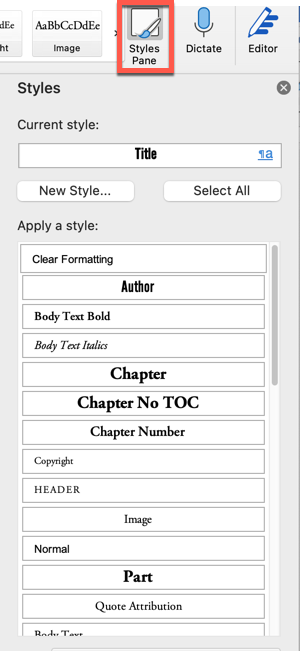
The available styles are listed in the ribbon across the top of the document.

Alternatively, you can select the “Styles Pane” icon, and the list of available styles will appear to the right of your screen.
Before you begin formatting your book, make sure you have enabled the Show Formatting Characters by selecting the  symbol from the Home tab of the Word menu at the top of the screen.
To apply a style to a paragraph, click on the paragraph and select the style from the list.
Below are examples of some commonly used styles when formatting books. You can edit the preformatted styles in the template provided in the member’s area to match your branding or preferences. You can also download the “How to Format Your Book” document which can also be used as a template for formatting your book.