Being able to generate a Table of Contents from styles within your document instead of manually entering page numbers will save you tons of time.
Since you have set up your document using styles, you can reference those to create a Table of Contents in seconds.
From the References tab in the main menu, select the dropdown arrow next to “Table of Contents” and click on “Custom Table of Contents…”
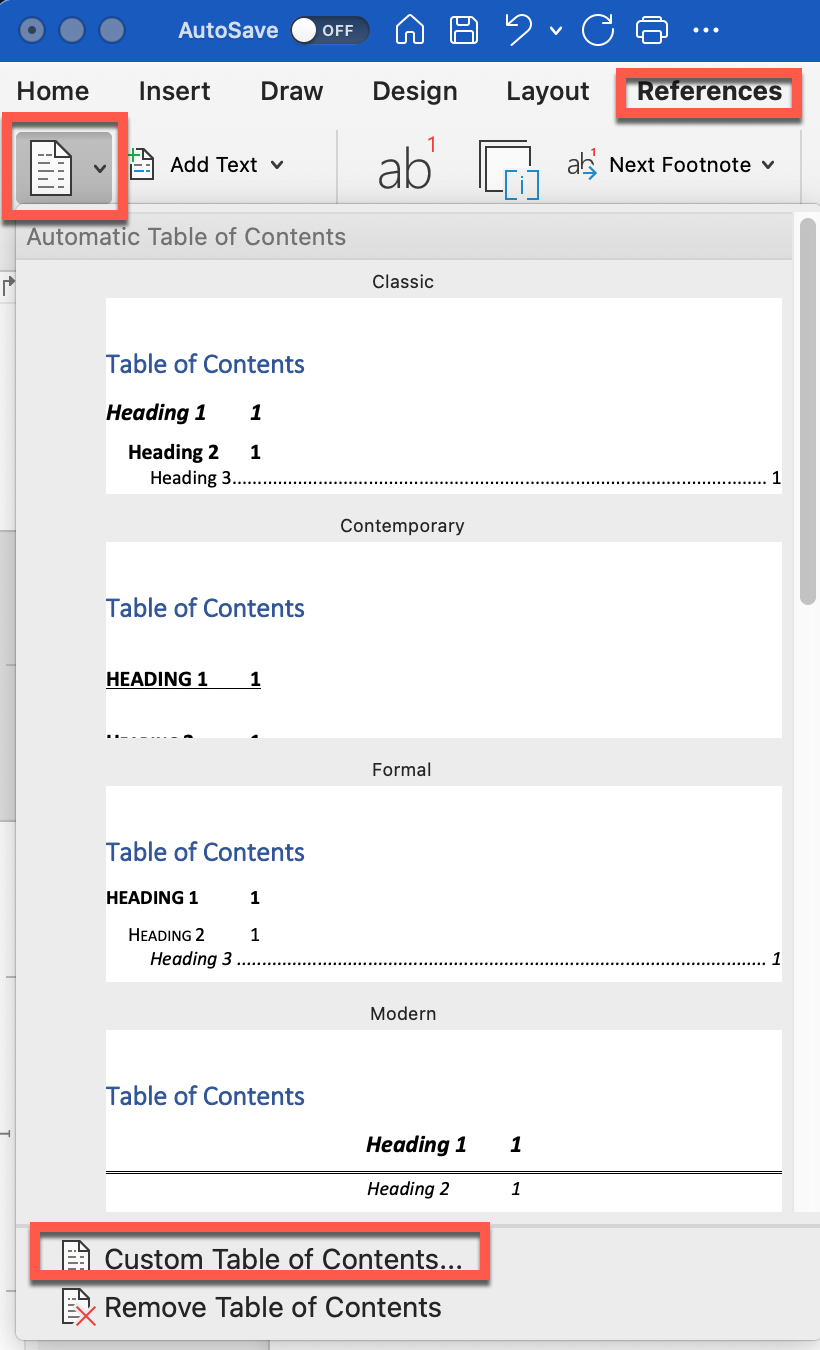
This will open the Custom Table of Contents dialog box with the following defaults:
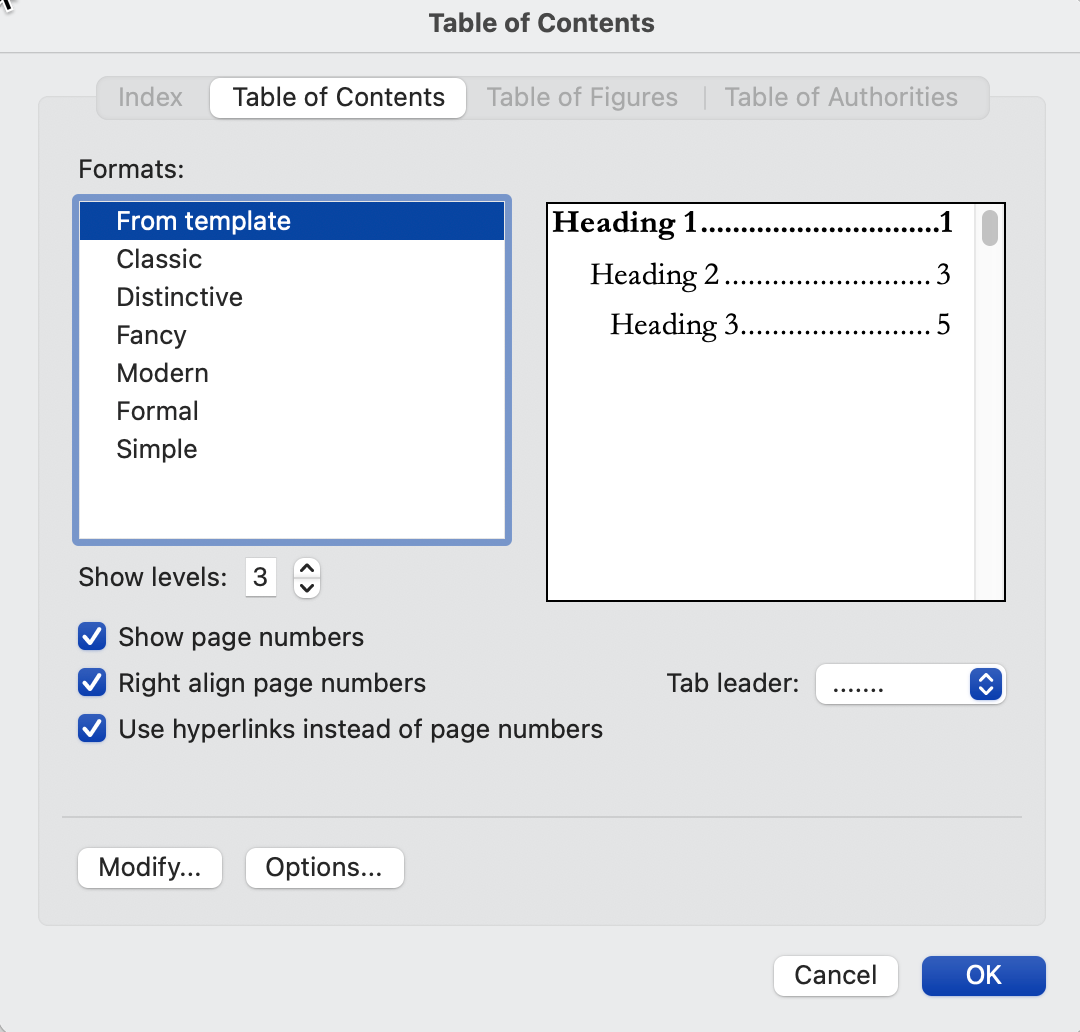
- Under formats, leave “From Template” selected.
- Uncheck “Use hyperlinks instead of page numbers.”
- Click “Options.”
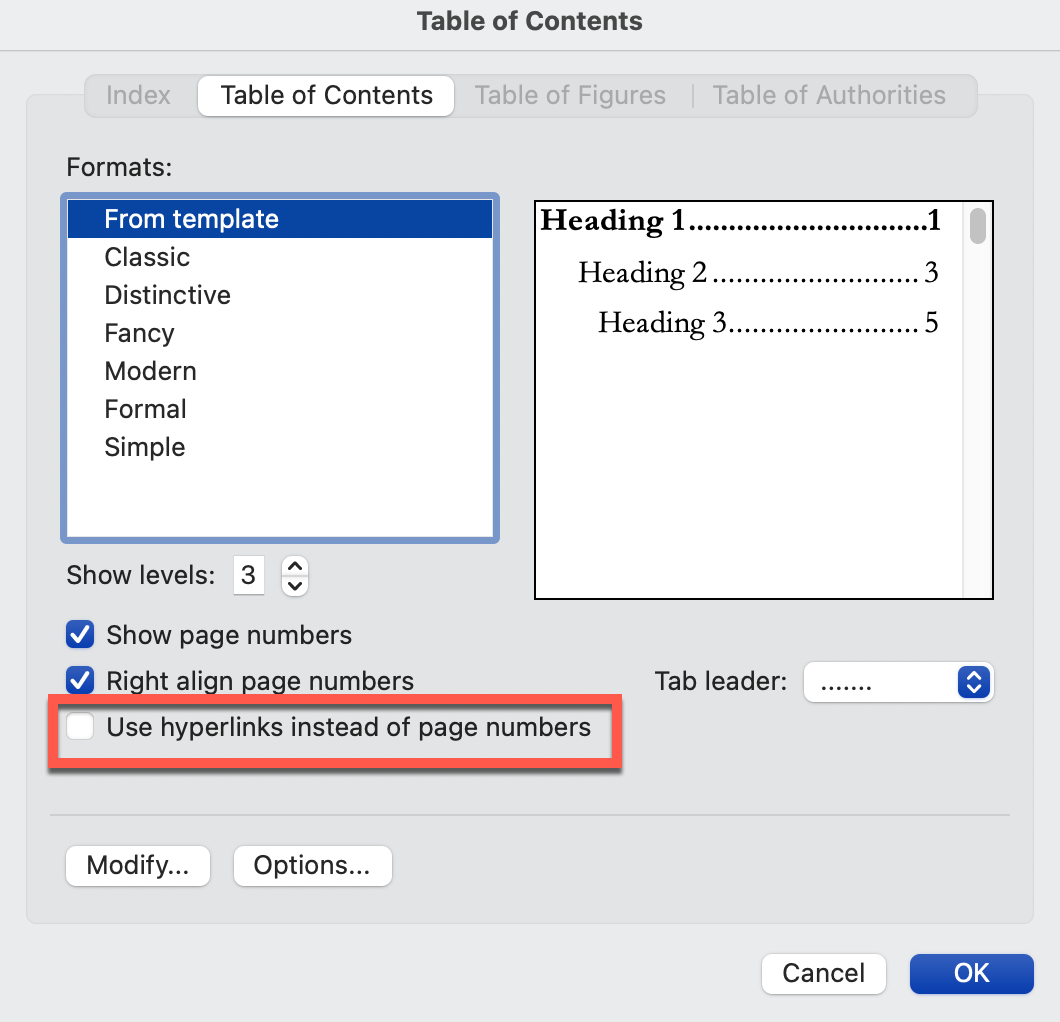
From the “Options” dialog box:
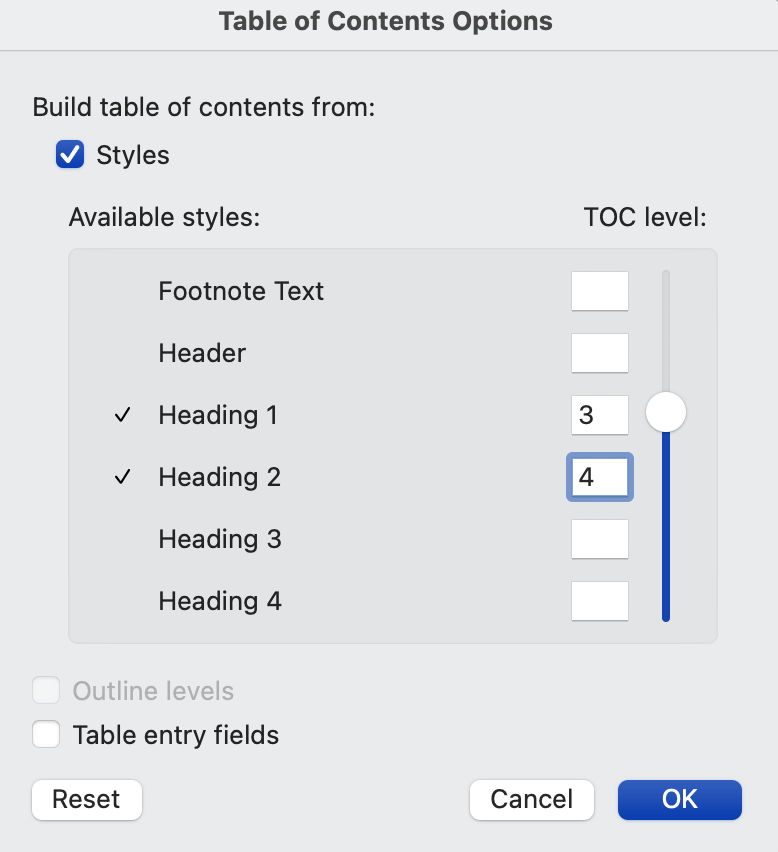
Ensure “Build table of contents from Styles” is checked.
We want our table of contents to have several levels to match the document structure, so we will enter the TOC levels for each of the styles listed below as follows:
- Part – 1
- Chapter – 2
- Heading1 – 3
- Heading2 – 4
Then, click “OK.”
Updating the Table of Contents
Right-click anywhere on the current Table of Contents and choose “Update Field.”
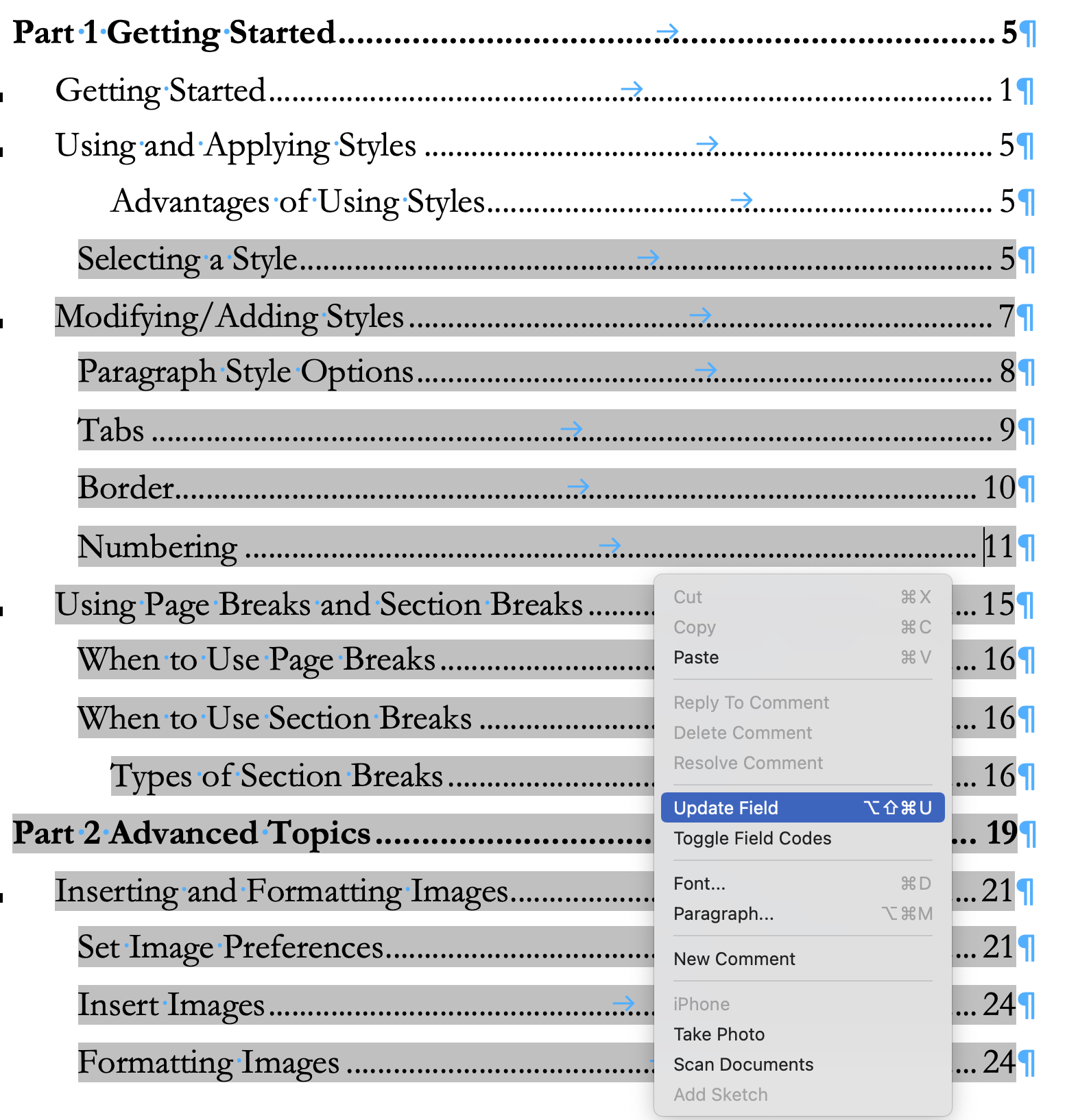
You have two options for updating the Table of Contents. Select the best option and click “OK.”

- Page Numbers Only – It’s a good idea to update the TOC before saving it as a PDF to ensure you have the correct page numbers.
- Entire Table – Update the entire table after each round of proofreading and editing to ensure the Table of Contents reflects all of your changes.