Before adding images to a Word document, ensure that you have set the preferences in Microsoft Word to import images at the best resolution for the type of book you are creating (ebook or print book). For best results, always insert images into your document from a file instead of copying and pasting.
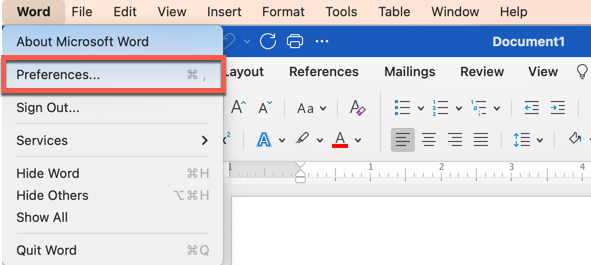
1. From the main Word menu, select Preferences
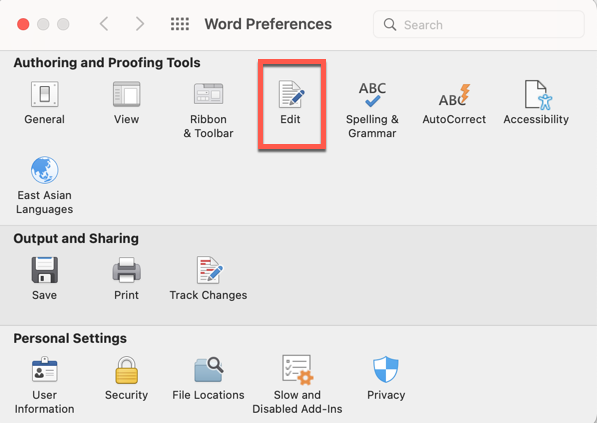
2. Click on the “Edit” Icon
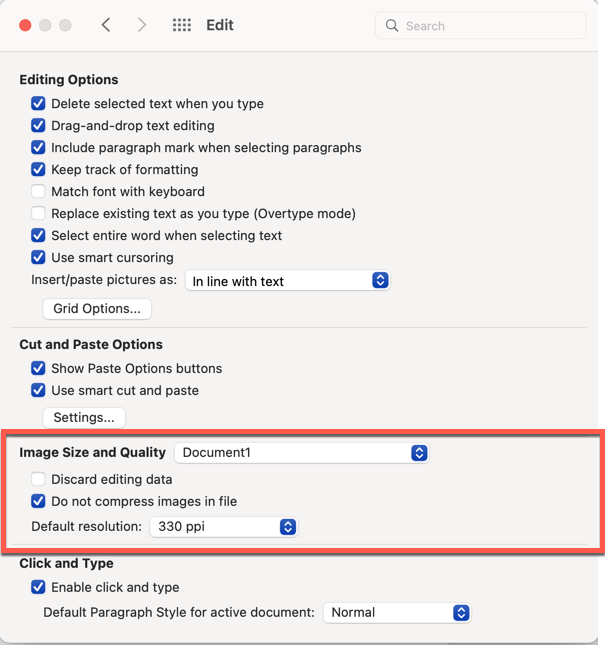
3. Scroll Down to “Image Size and Quality”
a. Select the name of the current document
b. Click “Do Not Compress Images” for print versions
c. Select the default resolution for images
4. Set Preferences for all new documents
a. Select “All New Documents”
b. Click “Do Not Compress Images” for print versions
c. Select the default resolution for images
