Content
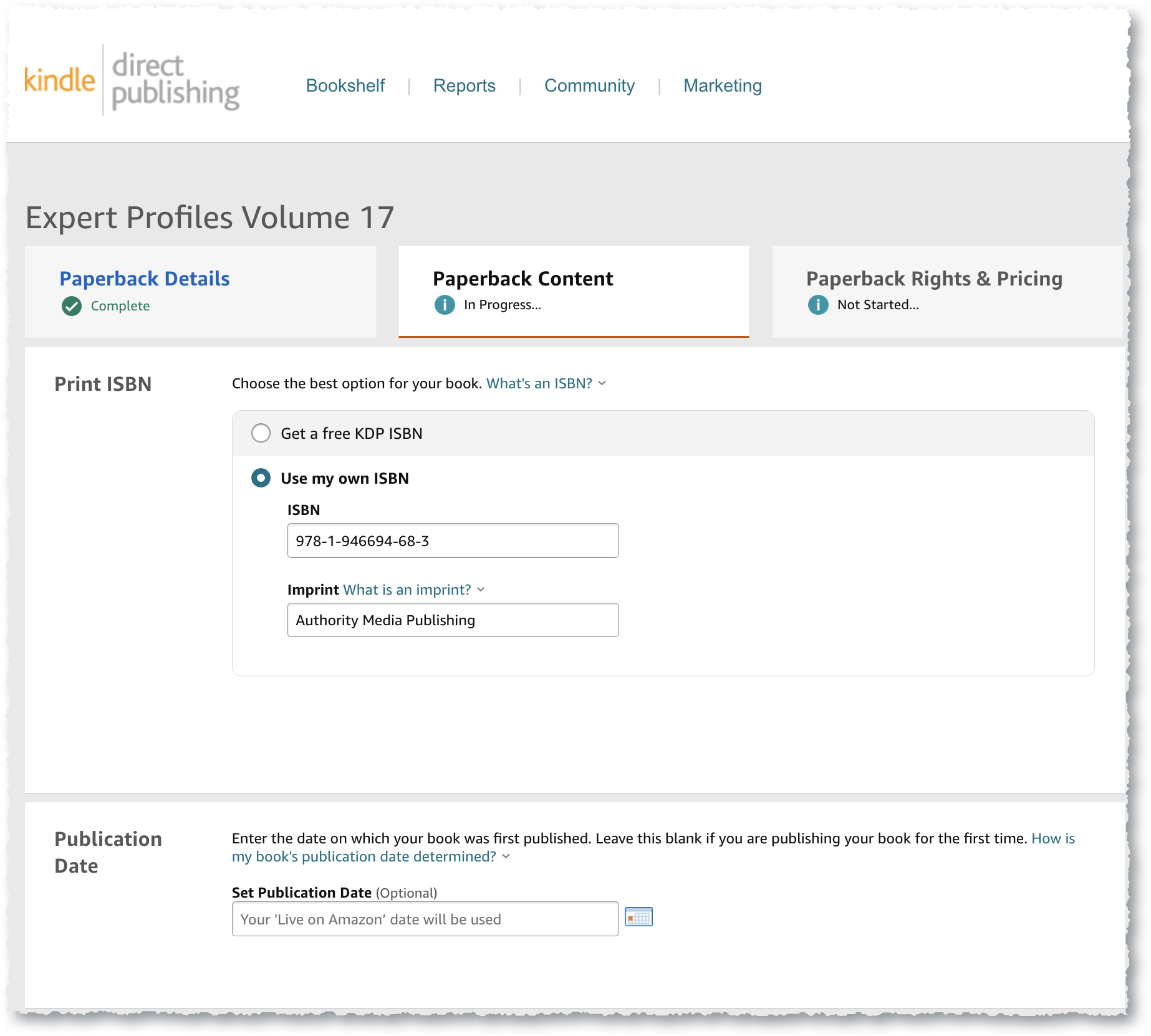
ISBN
Get Free ISBN is only recommended if you don’t plan to published outside of KDP.
| ISBN | Enter the ISBN |
| Imprint | If you purchased an ISBN outside of KDP, include the Imprint name you entered |
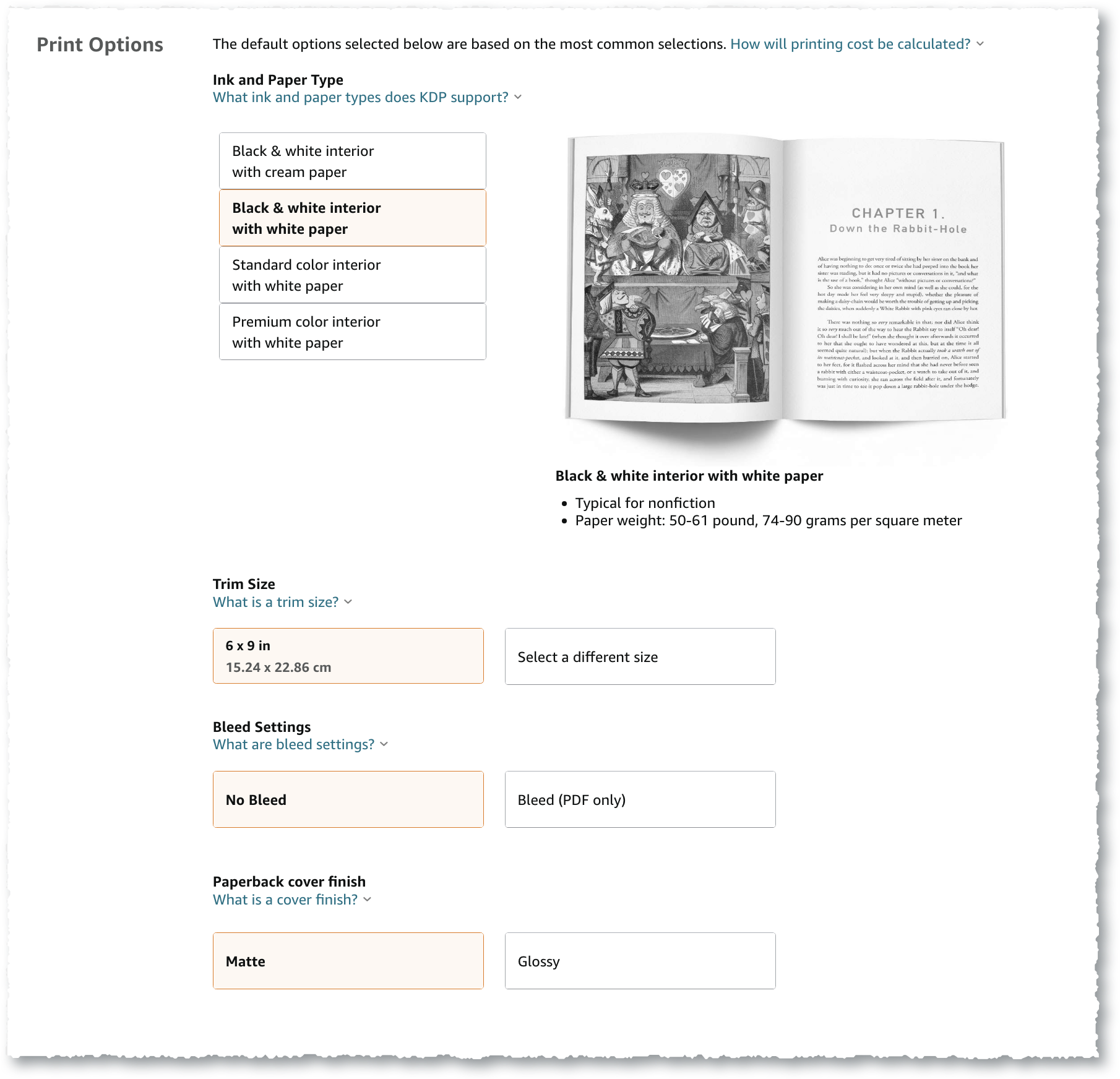
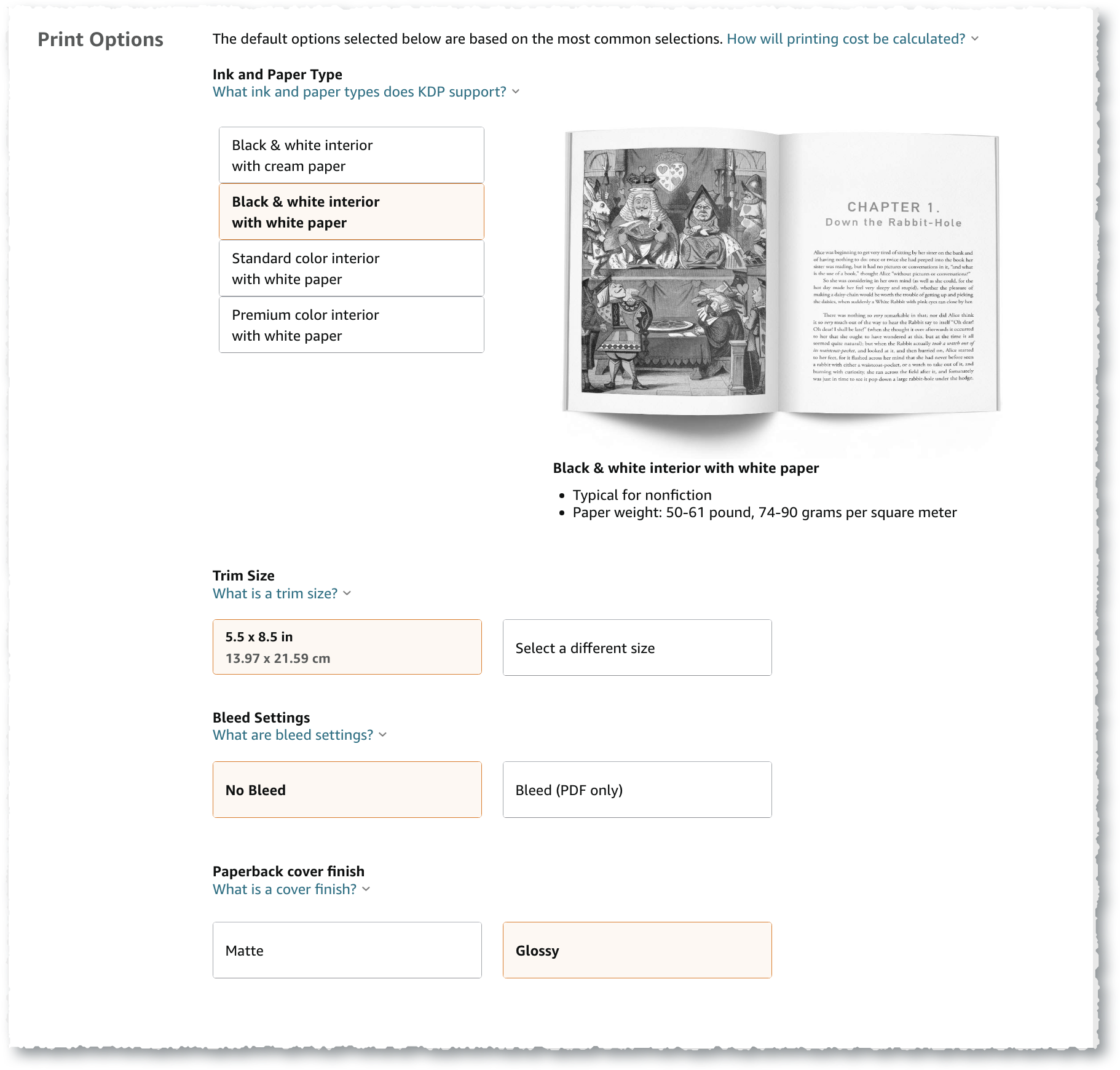
Print Options
Choose the Ink, Paper Type, and Trim Size
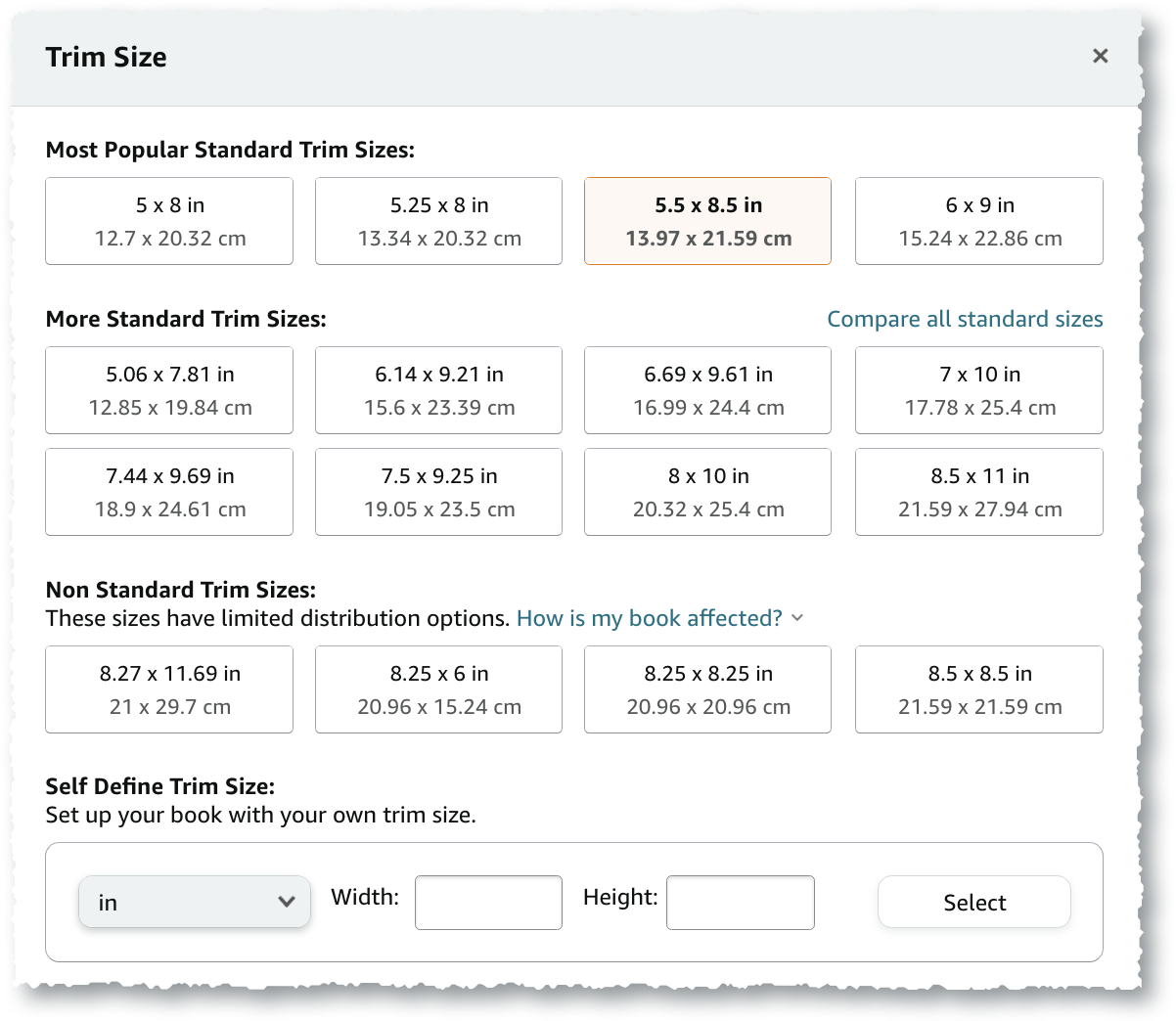
Click on “Select a Different Size” to choose a different trim size.
You will see your final choices on the next screen.
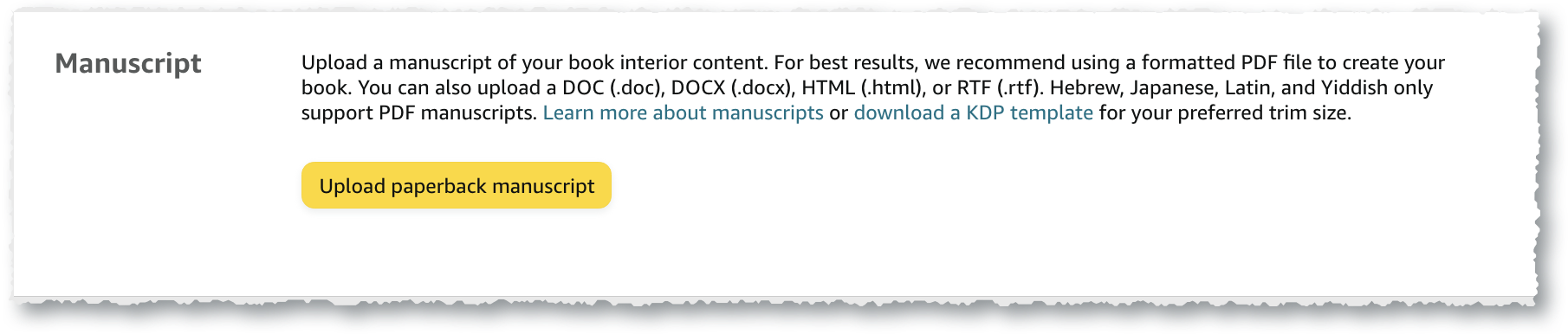
Upload Manuscript & Cover
| Upload Paperback Manuscript | Upload a PDF file containing the interior content for your print book |
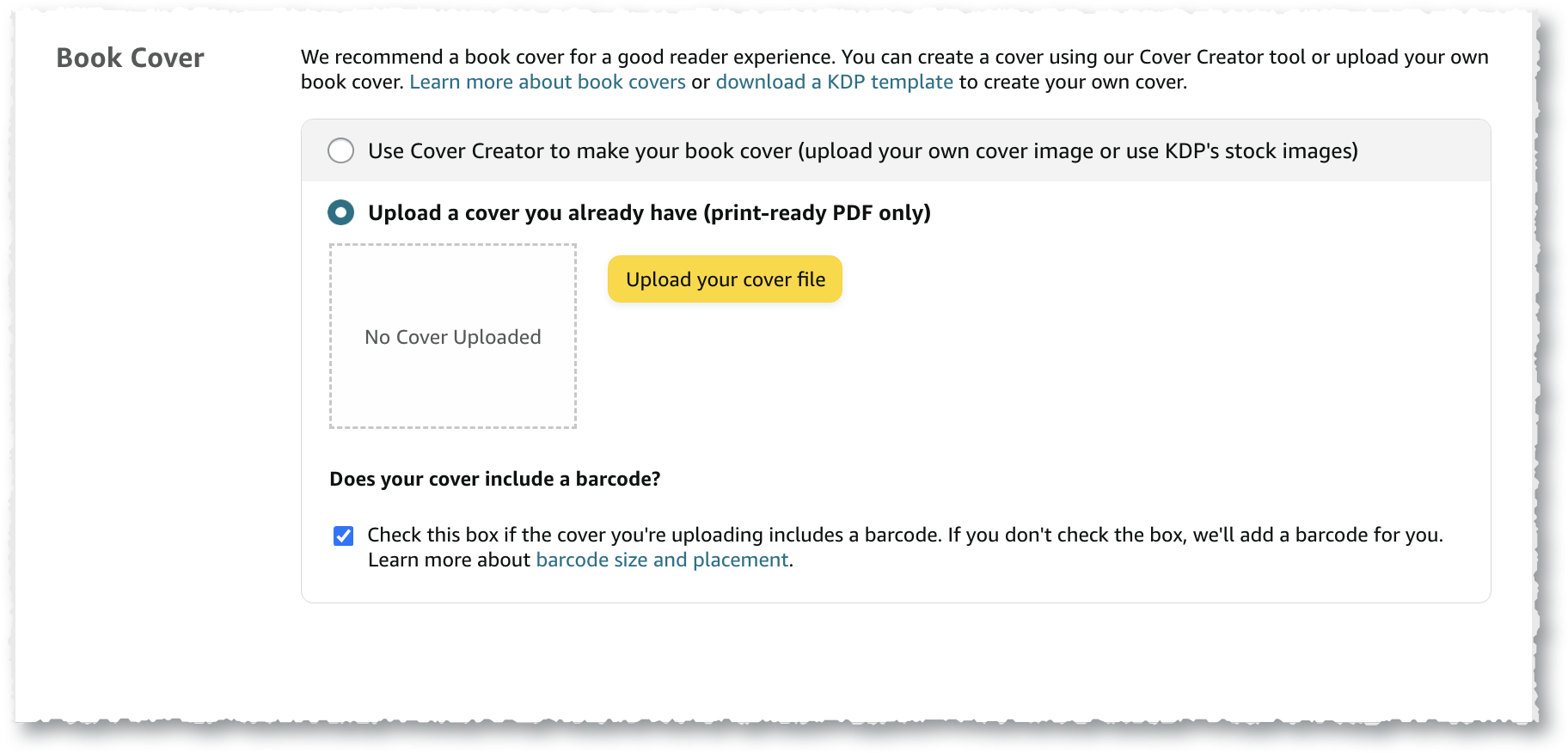
| Upload Paperback Cover | Upload a PDF file containing the cover front, back, and spine |
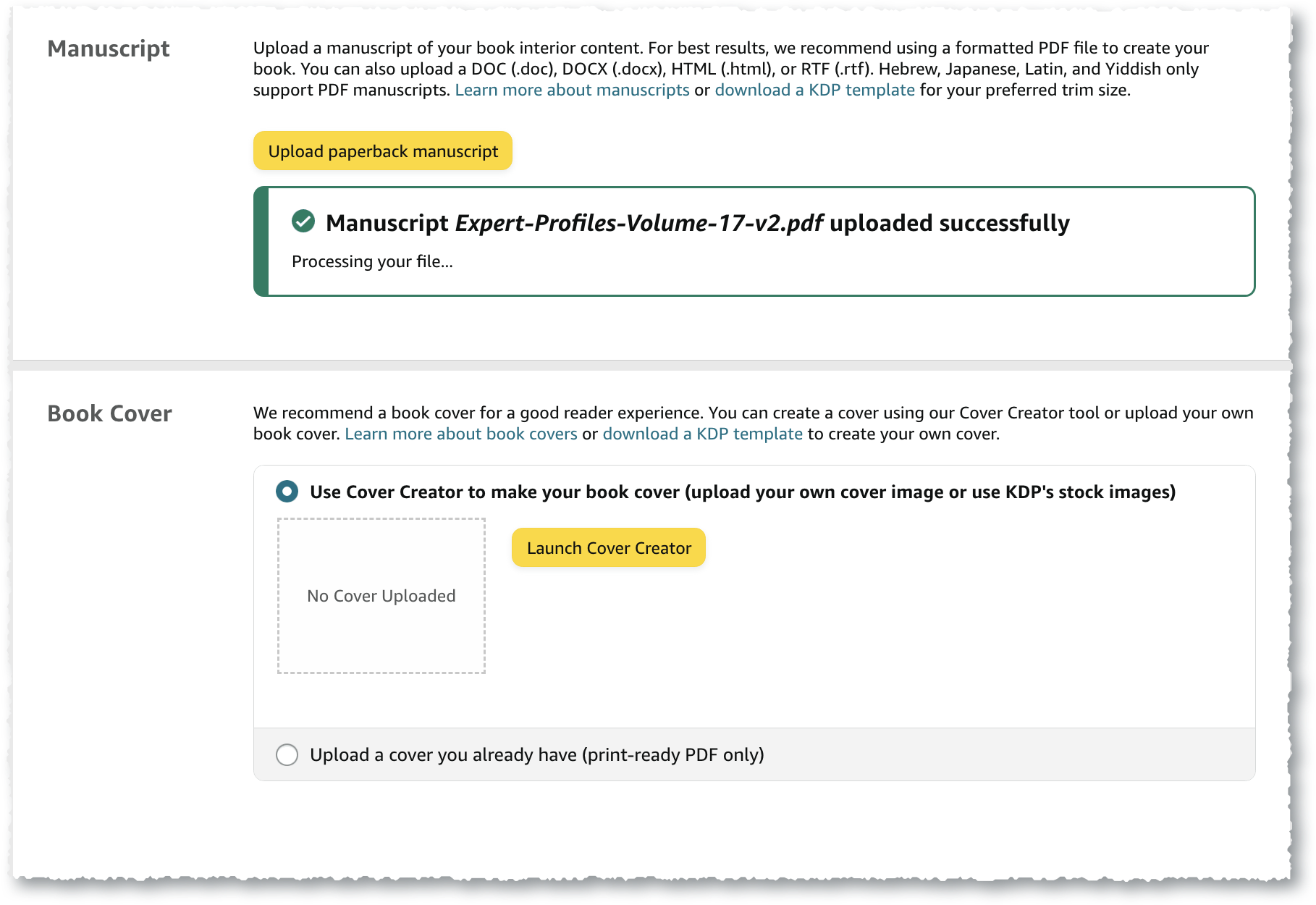
Upload Cover
Book Preview
After the interior and cover files are uploaded, you will see the option to Launch Previewer.
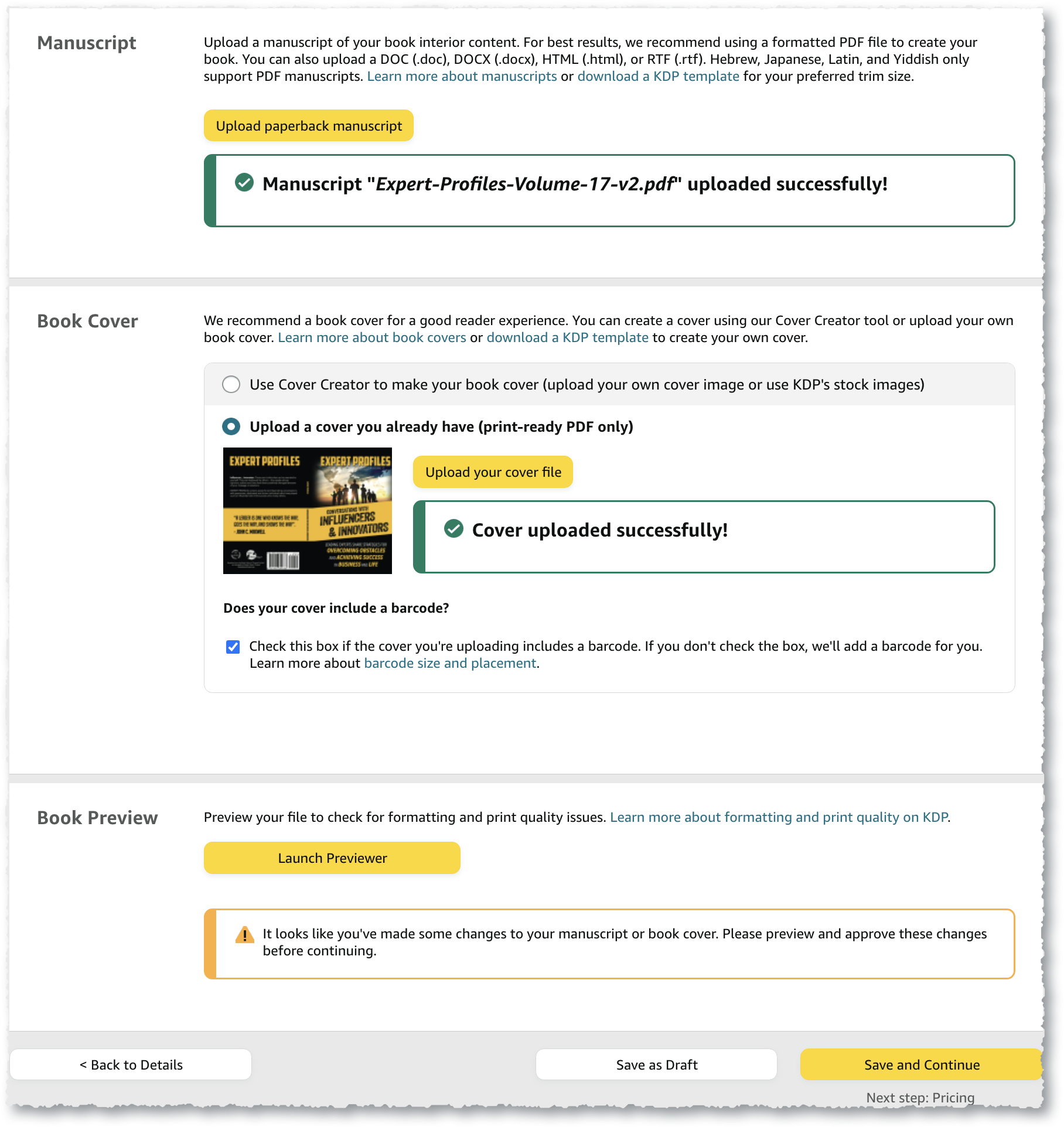
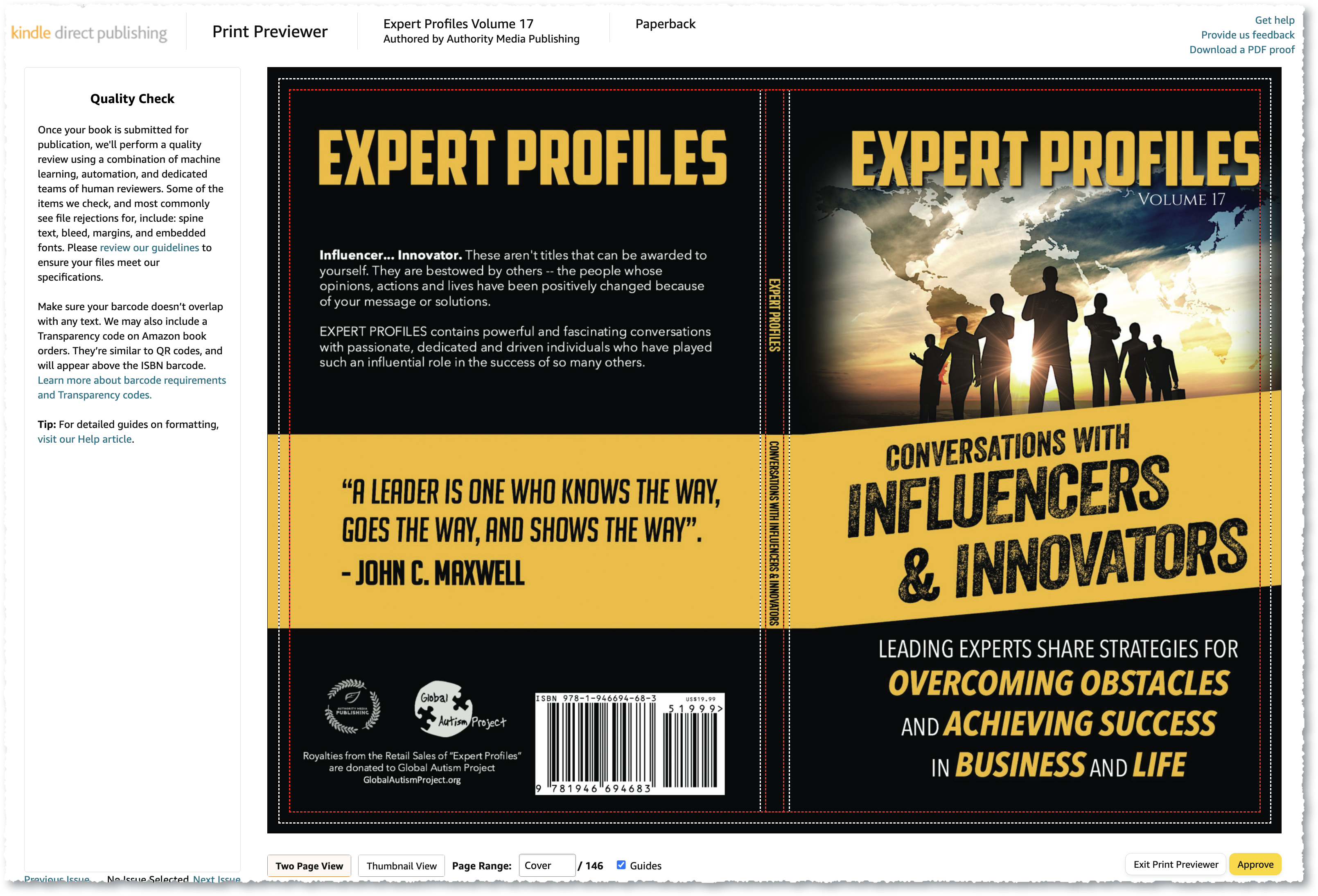
| Online Preview and Quality Check | Once you upload your interior and cover files, you will have the option to preview your book online to check for quality issues. Hover over the book until you see the arrows to scroll to a new screen. |
You will first see the cover. Check the margins and spine to ensure all content is within the print area.
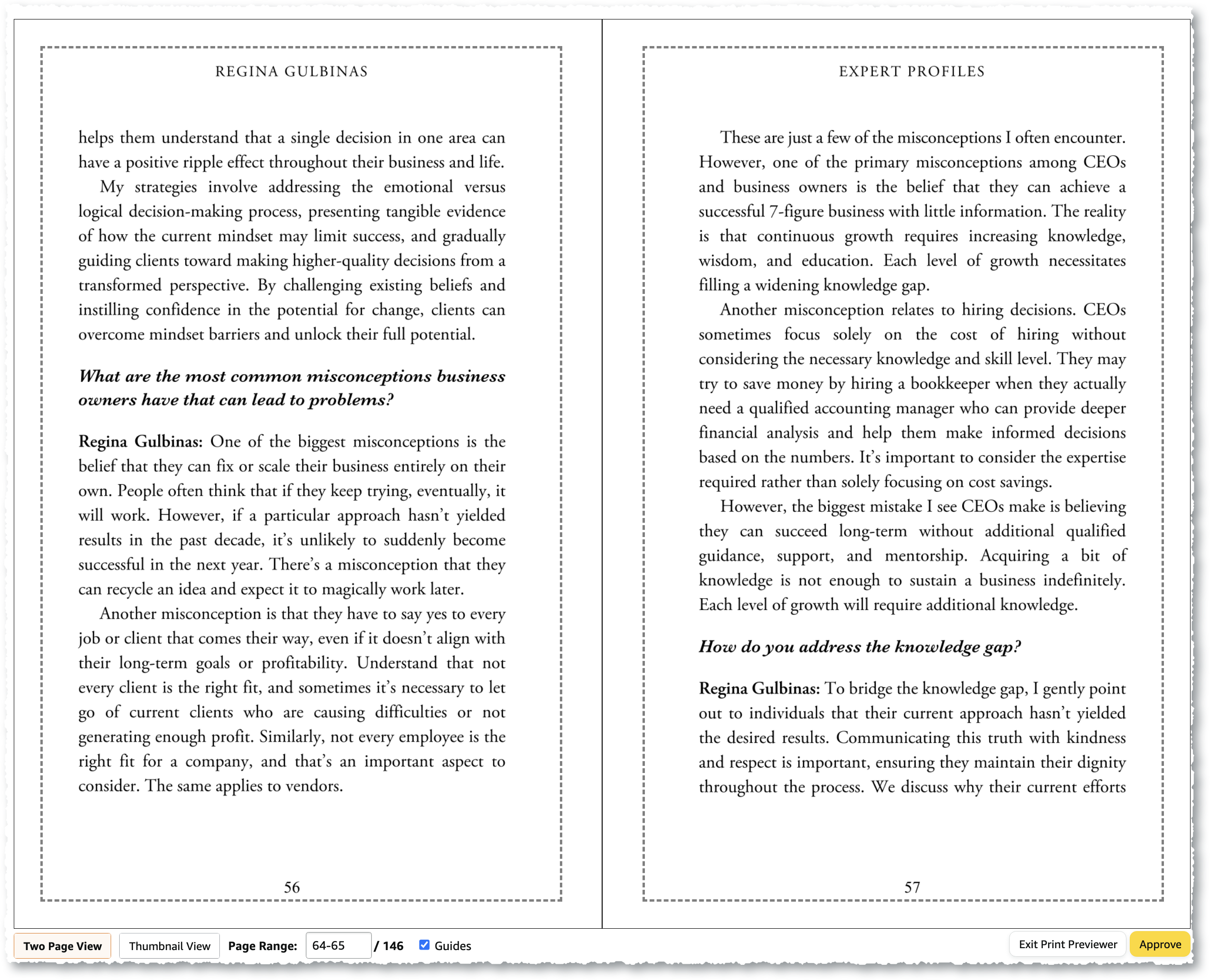
Click on the arrows to page through the book’s interior.
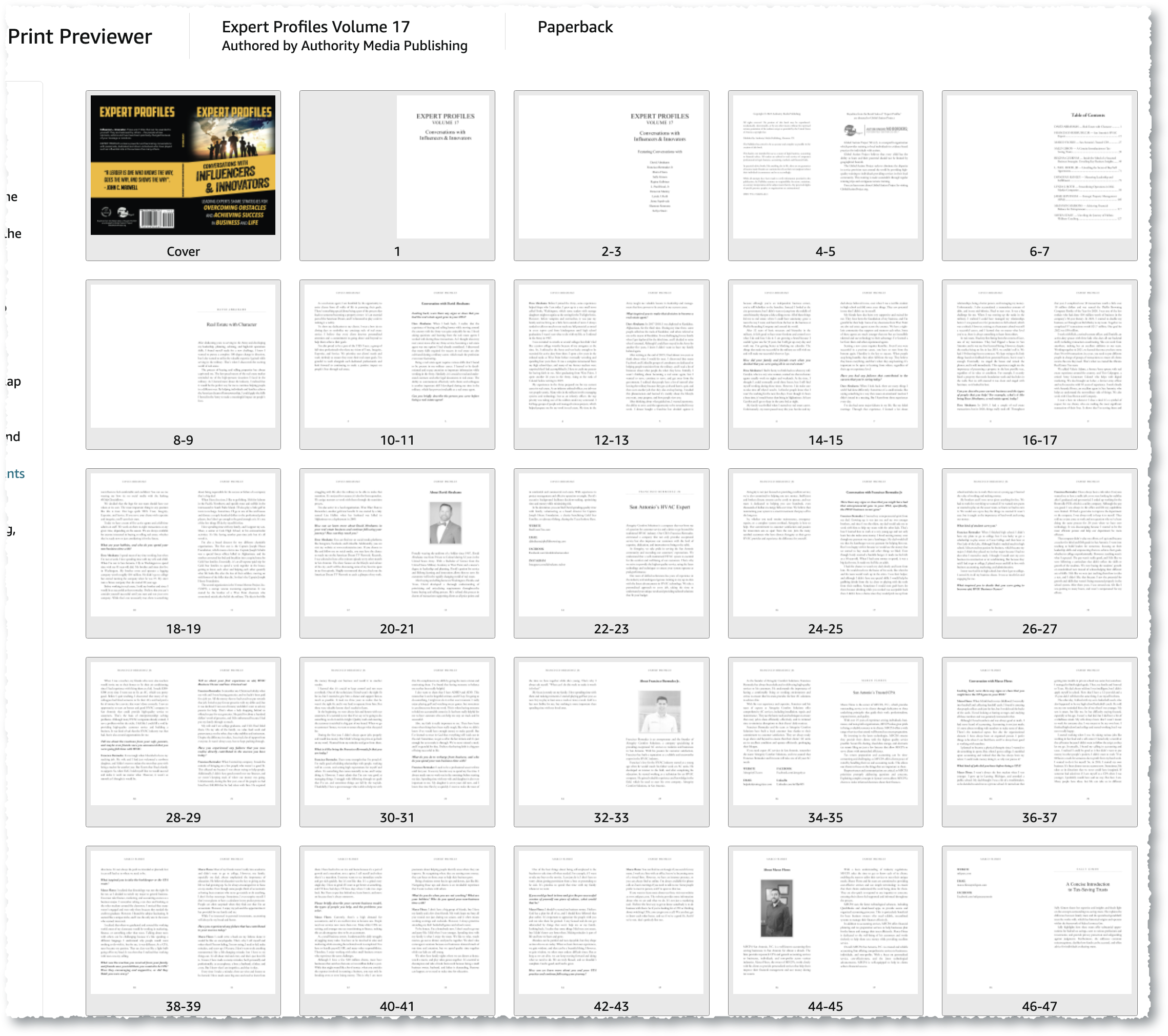
Alternatively, you can view the book’s interior by thumbnail.
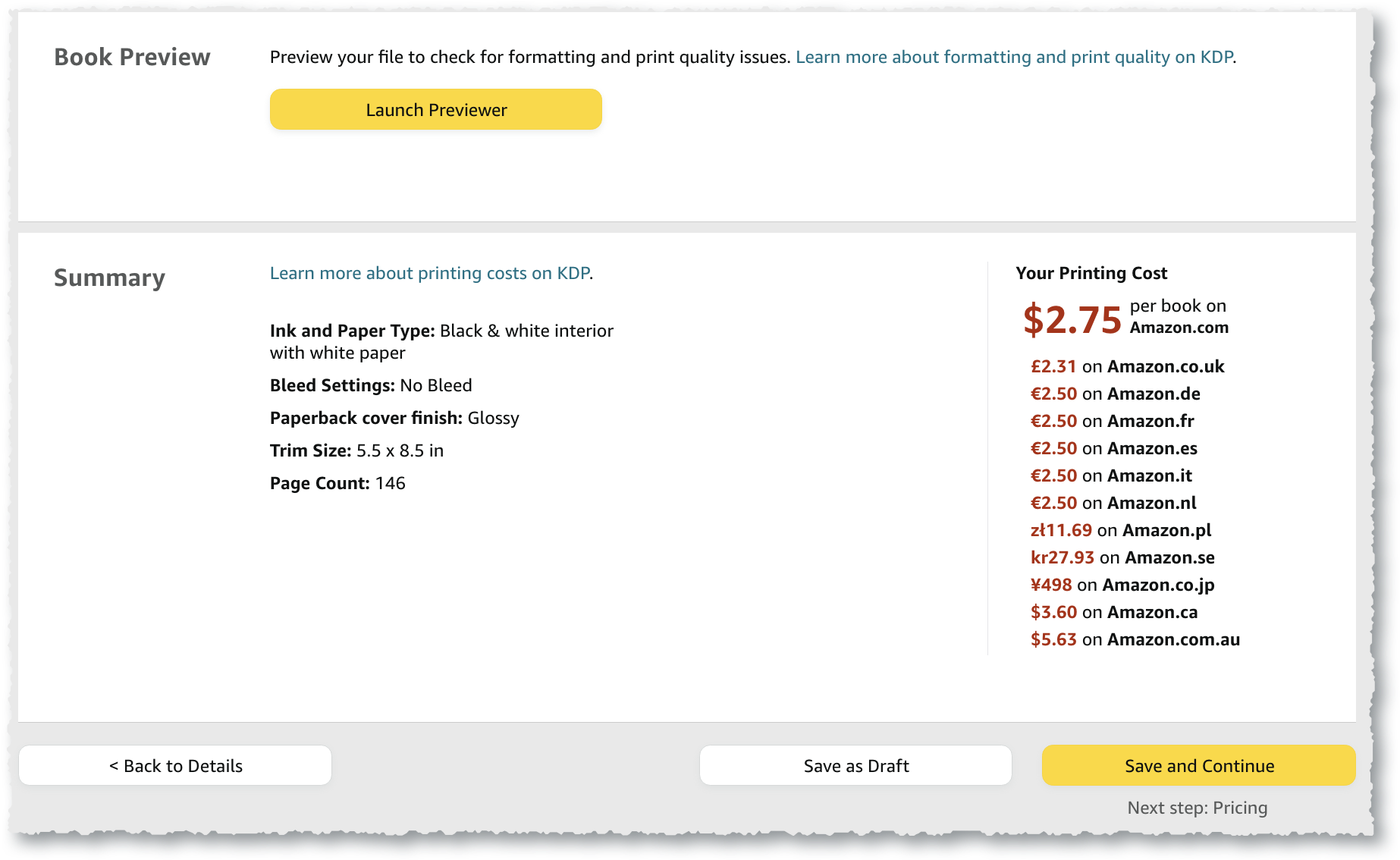
KDP will display the print cost. Choose Save & Continue to get to the pricing screen.