eBooks to be published on KDP can be formatted using Microsoft Word. For best results, follow the guidelines listed below:
Styles
To ensure your book appears correctly when uploaded to KDP, you should format your book using predefined styles.
Paragraphs and Line Spacing
Because Tab spacing does not convert to Kindle, always set indentations through the Paragraph dialog box.
- In the styles pane, select the style you want to modify. From the dropdown list next to the style, choose Modify Style…
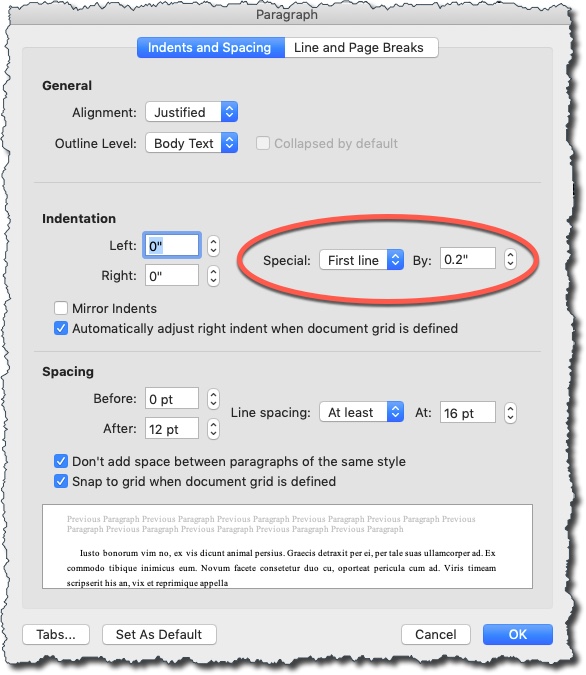
- Click the Format dropdown list and choose Paragraph to open the Paragraph dialog box.
- From the Indents and Spacing tab, go to Indentation > Special, and set First line indent to 0.2″ (5 mm).
- Click OK.
Chapter Titles
Ensure all Chapter Titles are formatted using a pre-defined style. This enables you to select those to be included in an auto-generated Table of Contents.
Front and Back Matter
- Front matter includes elements like title, copyright, and dedication pages.
- Back matter can include an “About the Author” page or bibliography.
- Your eBook should include a title page with your book title and author name.
Page Breaks
Page breaks should be inserted where you want a new page to begin. Any section breaks used in a Word file will be converted to Page Breaks when uploaded to KDP.
Hyperlinks
All hyperlinks must go to a working page. Broken links within an eBook can cause Amazon to pause sales of your book.
Footnotes
Footnotes will automatically be converted to endnotes in your eBook.
Images
For best results:
- Insert images at their original size.
- Ensure images are at least 300 DPI
Table of Contents
The Table of Contents should be auto-generated using the References – Table of Contents feature in Word.
Style Elements to Avoid
The following style elements should not be used for an eBook.
- Hard Returns – should only be used at the end of a paragraph, not at the end of each line.
- Track Changes – Before publishing, make sure all changes have been accepted and this option has been turned off.
- Cover Image – Do not include the cover image in your file. KDP will automatically add the cover you upload to your book.
- Drop Caps – These are supported by KDP but may not appear the way you want them.
- Headers and Footers – These are ignored by KDP.
- Page Numbers – eBooks are reflowable and the reader can select the font size, so page numbers do not apply.