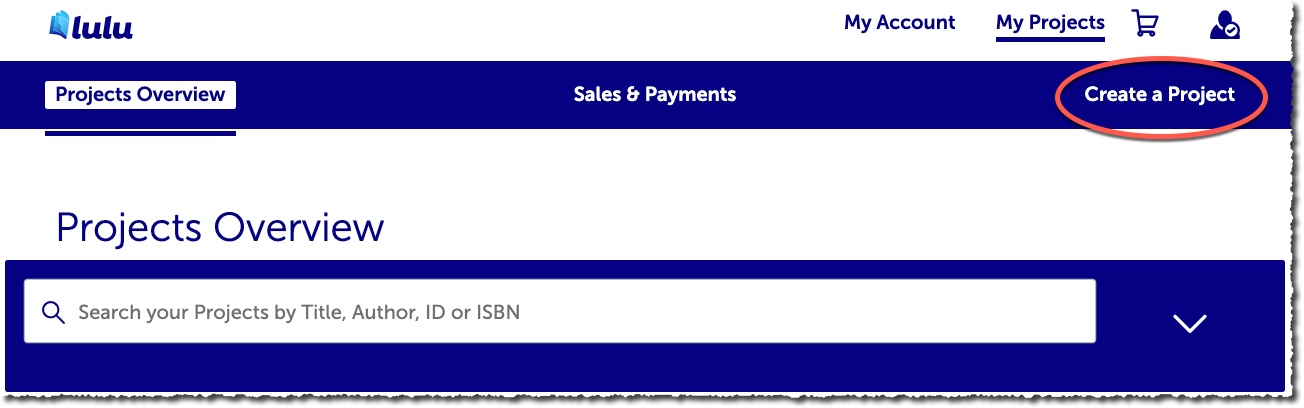
Login in to your account on Lulu.com and select Create a Project from the menu across the top of the screen.
If you do not have a Lulu account, click here to create a new LuLu account Here
Note: The following example shows you how to upload a book and make it available through a Direct Access link to share with others for hands-off ordering.
Create a Project
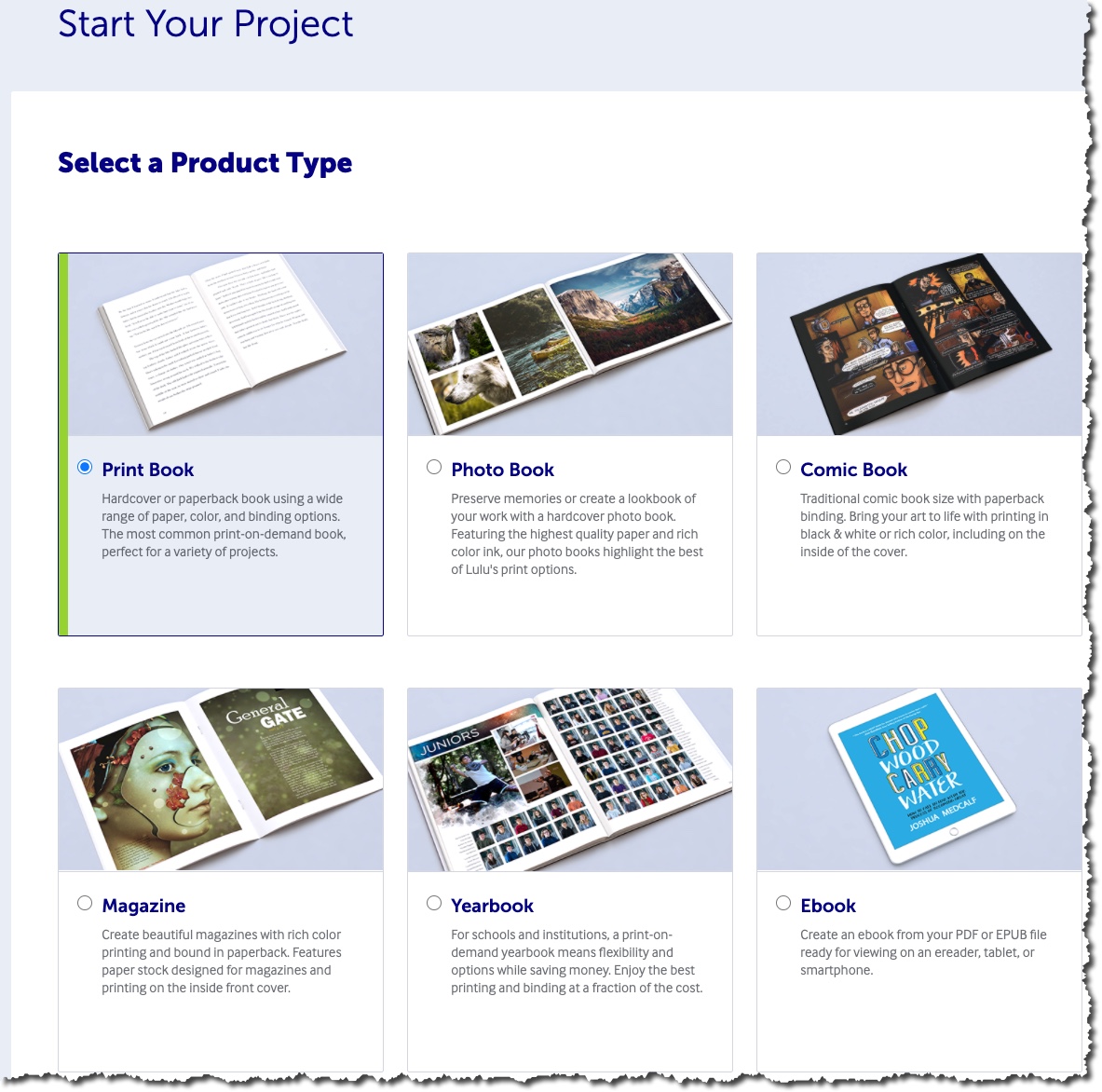
Start Your Project – Select a Product Type
For this example, “Print Book” is selected because we are creating a standard paperback book.
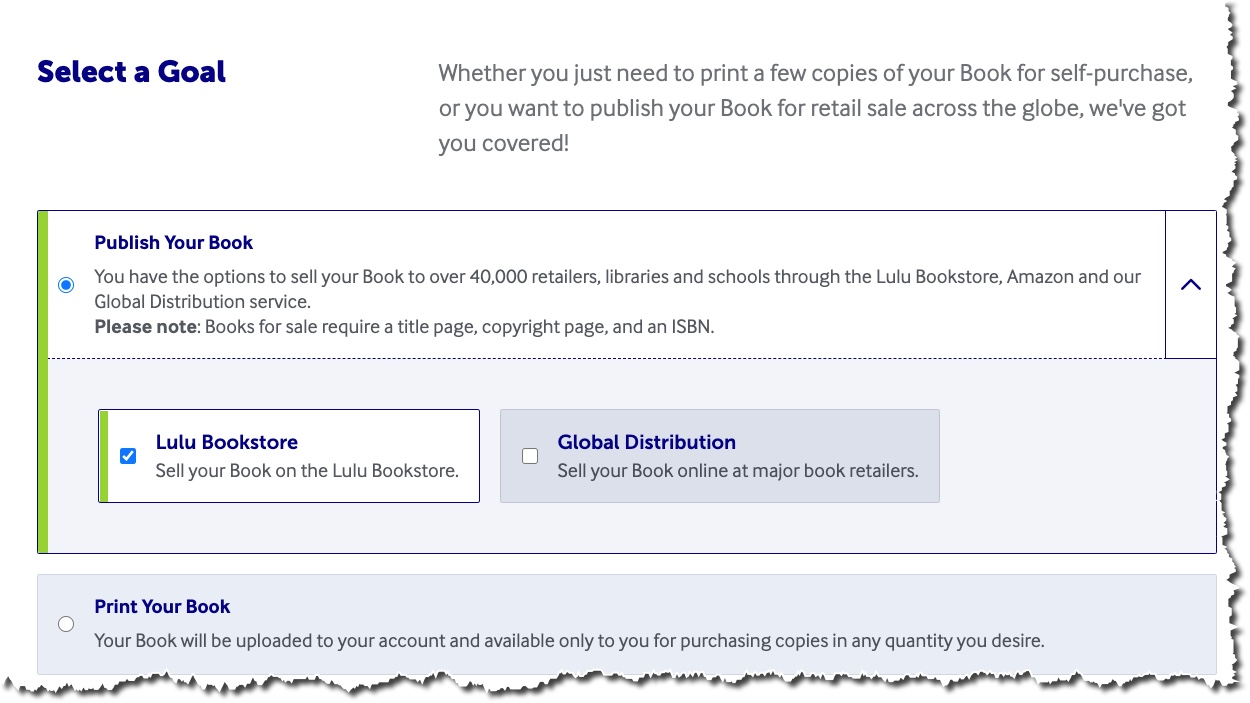
Select a Goal
Choose your goal for this project.
Publish Your Book (Lulu Bookstore) – Select this option if you want to have your book for sale on the Lulu bookstore.
Global Distribution – Select this option if you want to sell your book online at major book retailers. DO NOT select this option if you are setting up a book for Direct Access purchase.
Print Your Book – Select this option if you do not want to publish your book to any bookstores but would like to order physical copies of the book.
Note that “Global Distribution” is not checked. We are setting this project up for Direct Access purchase and will not be including an ISBN.
Book Details
Project Title – Enter the project title. Note that this can be different from the book title.
Book Language – Select the primary language for the book.
Book Category – (Optional) Select the category for the book.
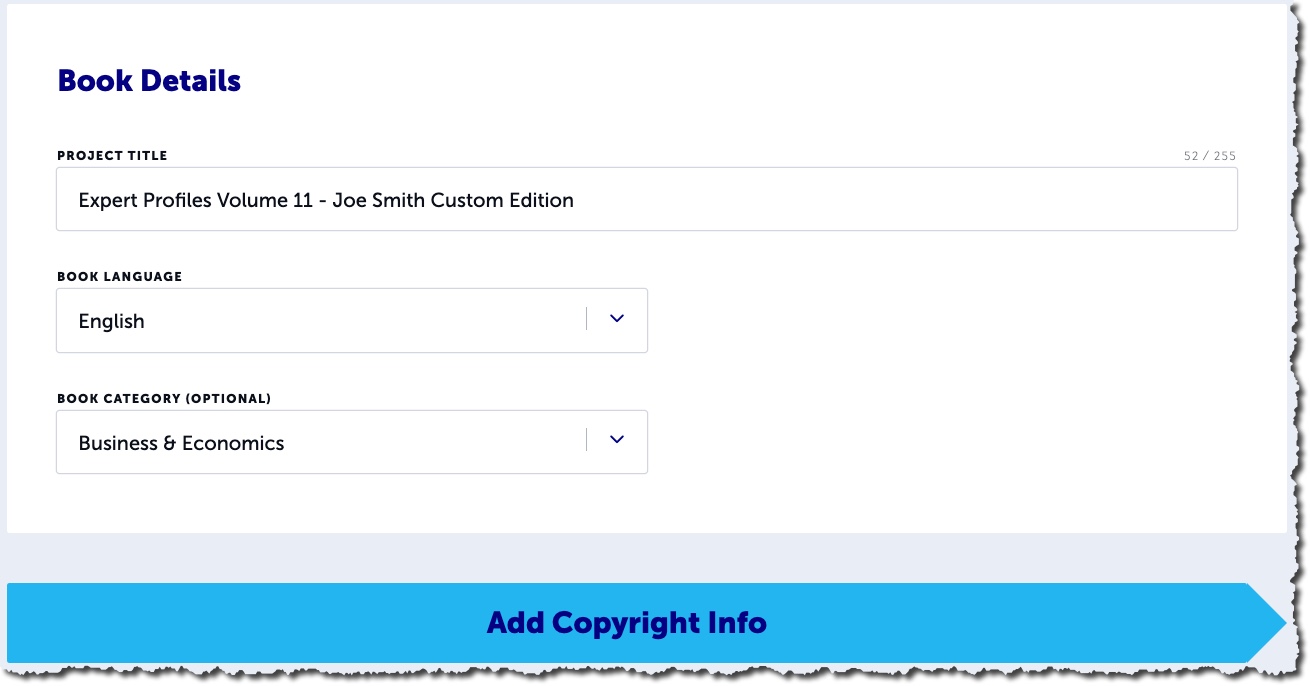
Click Add Copyright Info to Continue
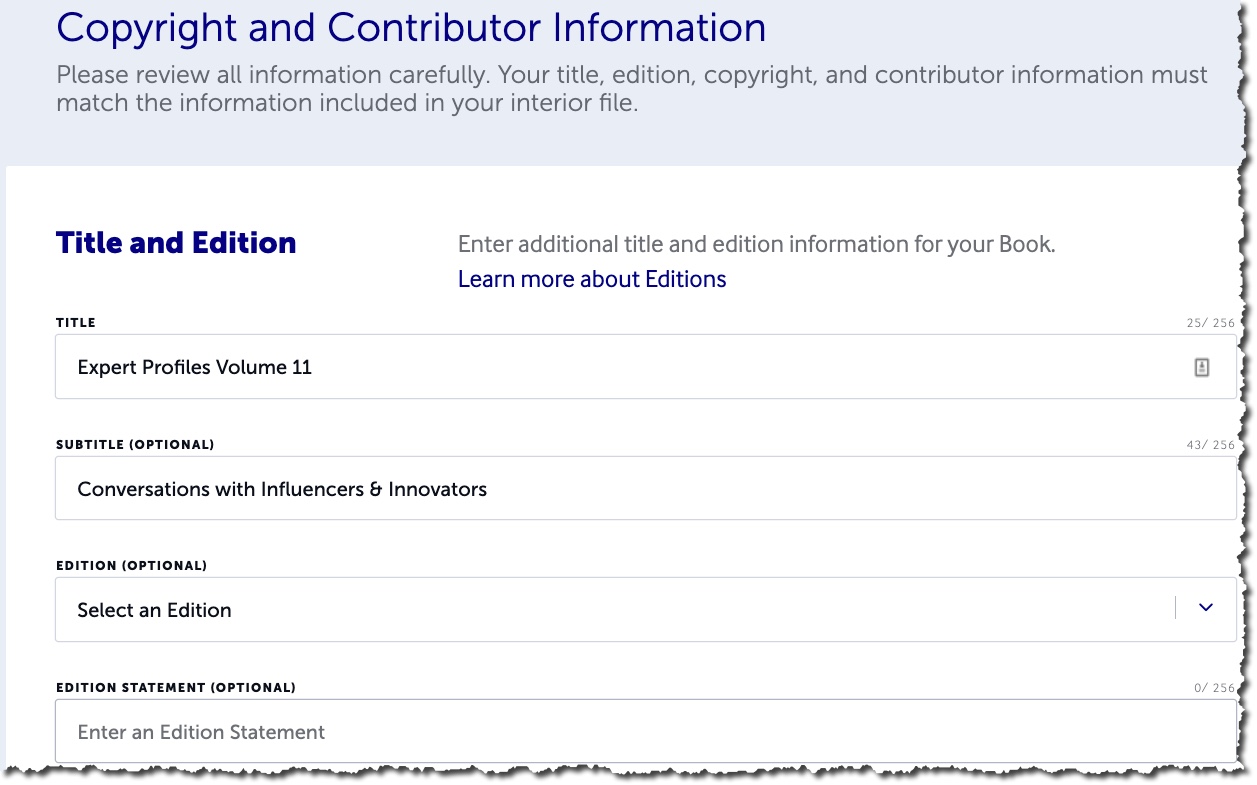
Copyright and Contributor Information
Add the Title, Subtitle, Edition & Edition Statement (if applicable). This information must match EXACTLY what is printed on the title page of your book’s interior file.
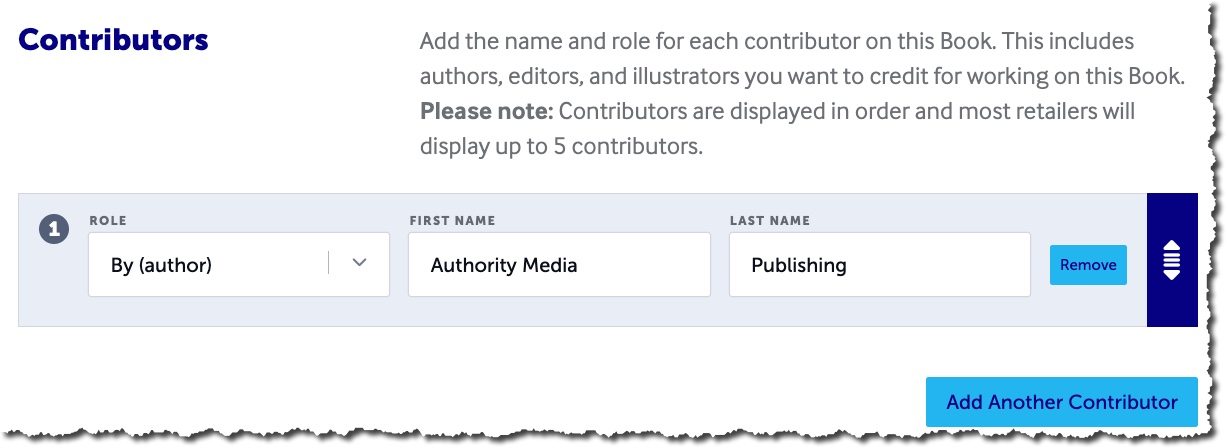
Contributors
Add the name and role for each contributor to the book.
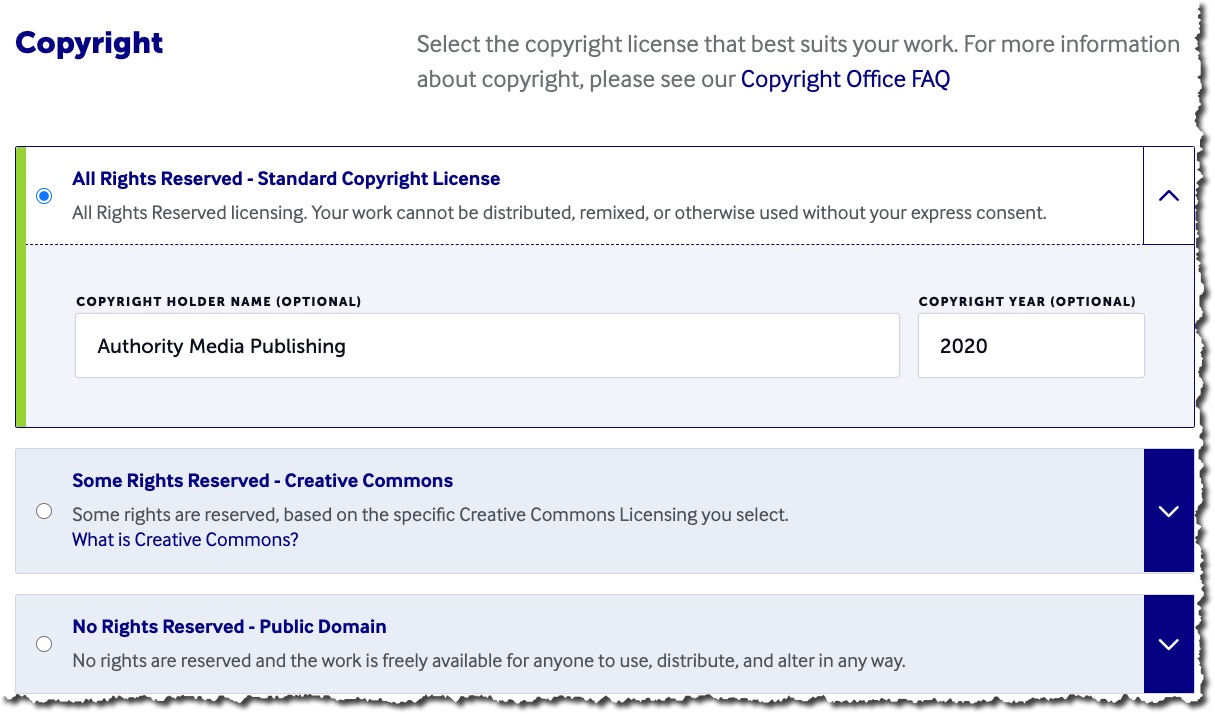
Copyright
Select the appropriate Copyright license. Add the copyright holder name and copyright year, if desired
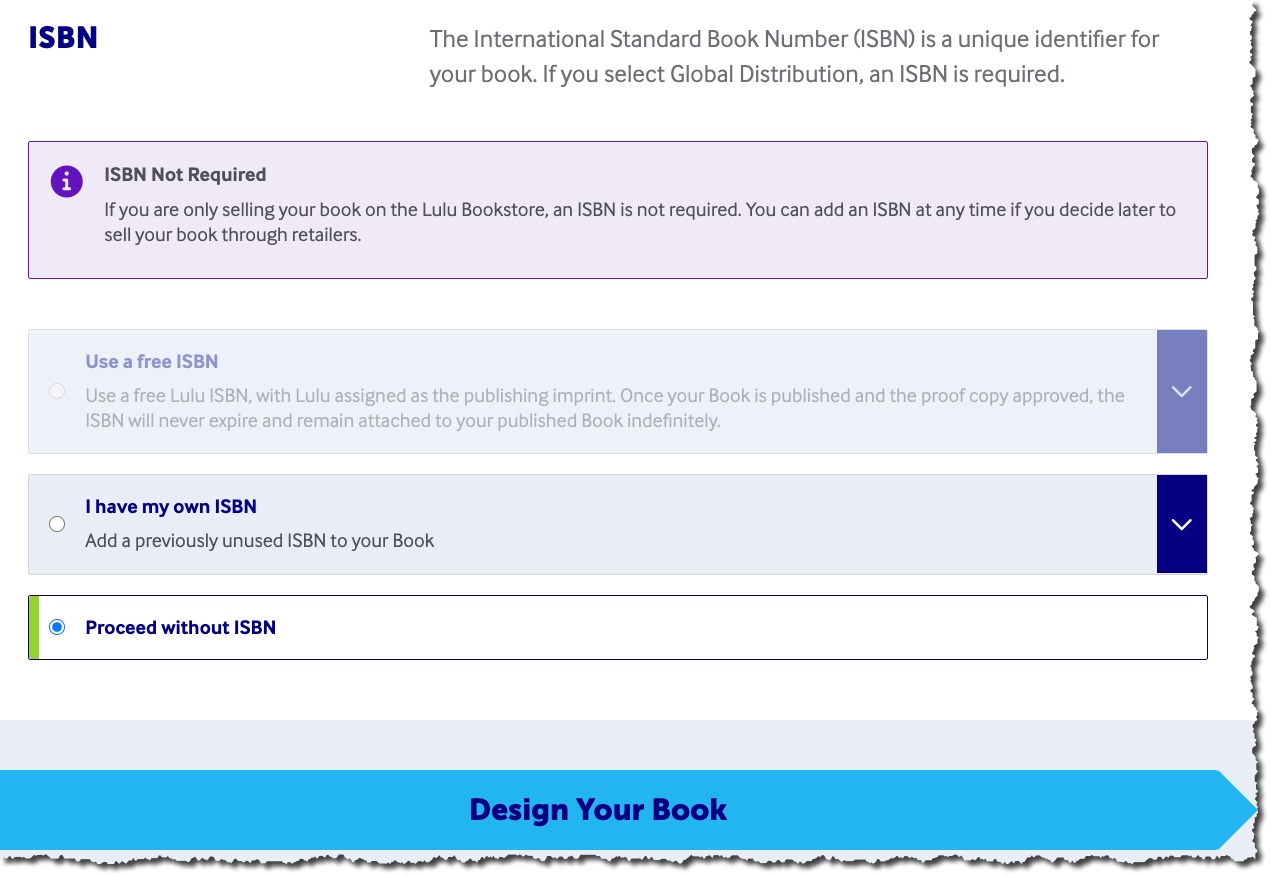
ISBN
Select the ISBN option
- ISBN Not Required – This option is selected for this project because the book will only available for purchase through a Direct Access link.
- Use a Free ISBN – Use a free ISBN provided by Lulu.
- I have an ISBN – Use an ISBN you have purchased through Bowker
After you select your ISBN option, click on “Design Your Book” to continue.
Design
From this tab, you will upload your interior and cover files. You will also select the paper type, binding type, and cover type.
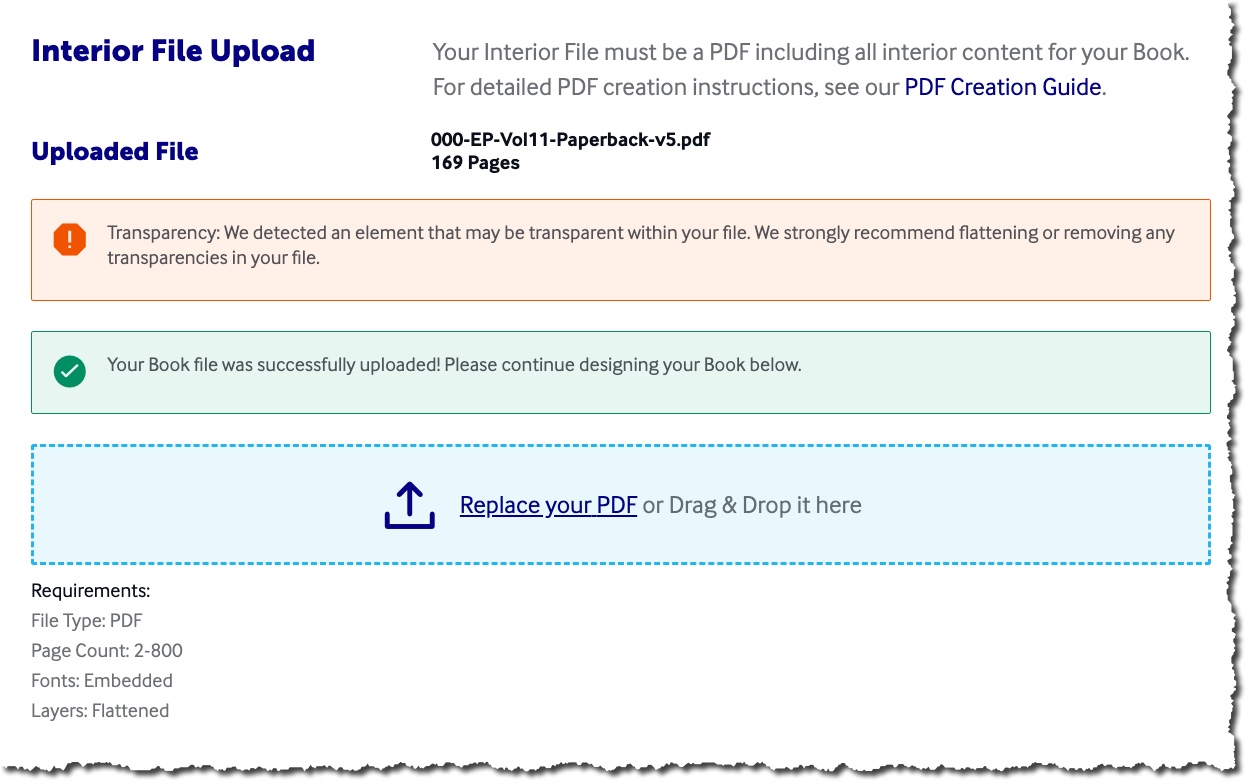
Interior File Upload
Upload your PDF or drag and drop it in the blue square. Once your interior file has been uploaded, Lulu will automatically detect the trim size and page count.
Book Specifications
- Book Size and Page Count – This is automatically detected by Lulu from the file you uploaded. Confirm the size and page count is correct before continuing.
- Interior Color – Select the ink color. We typically select “Black & White Standard”
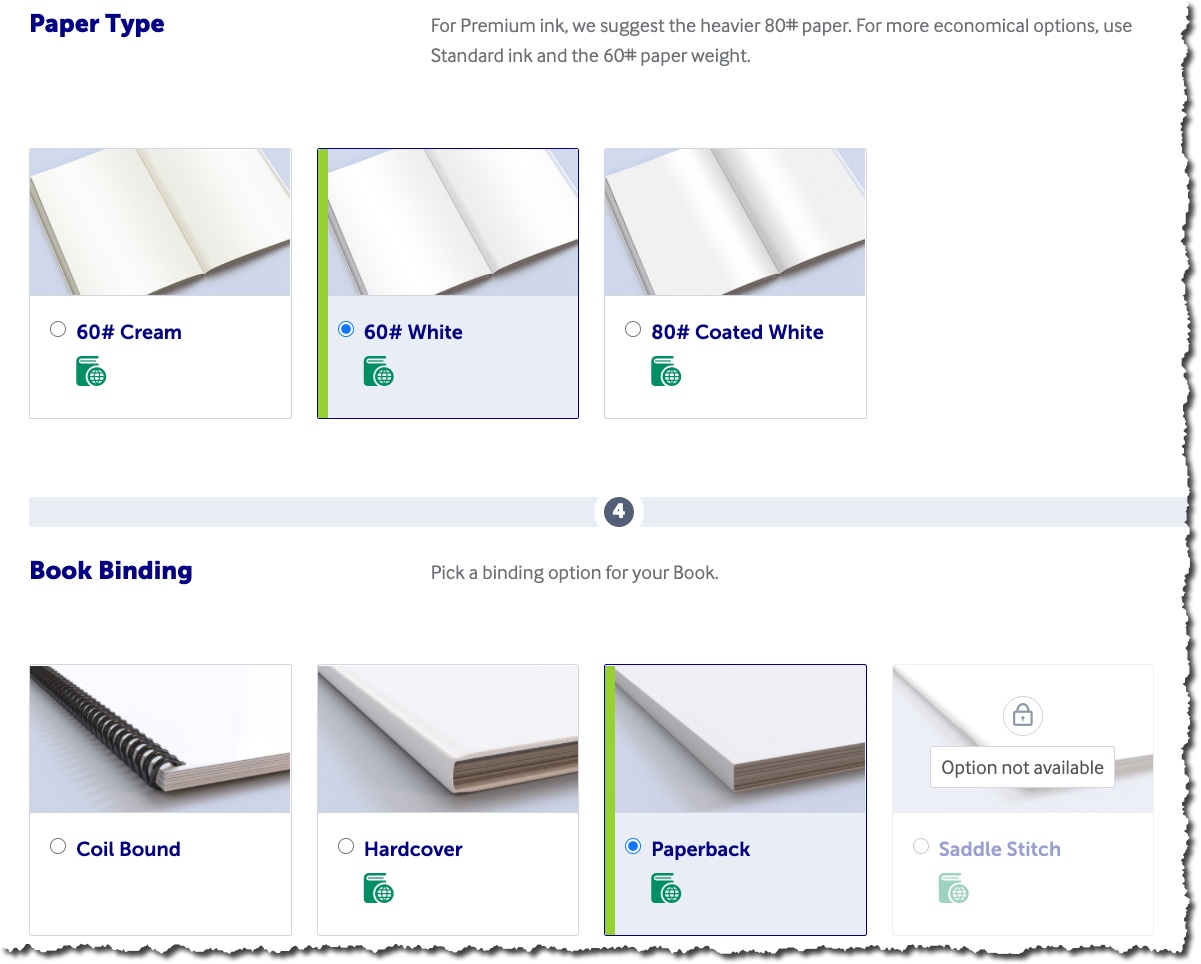
- Paper Type – Select your desired paper type. We typically select “60# White” which is consistent with the paper used by Amazon.
- Book Binding – Select your binding type. We typically select “Paperback.”
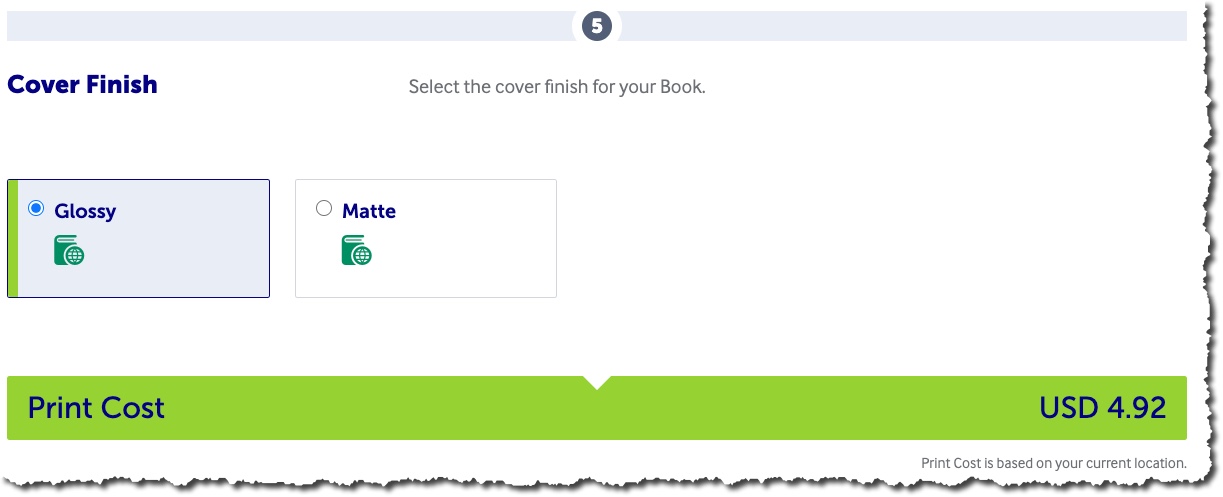
- Cover Finish – Select either Glossy or Matte. Notice that once you select the cover type, the print cost will be displayed. This example is in US dollars.
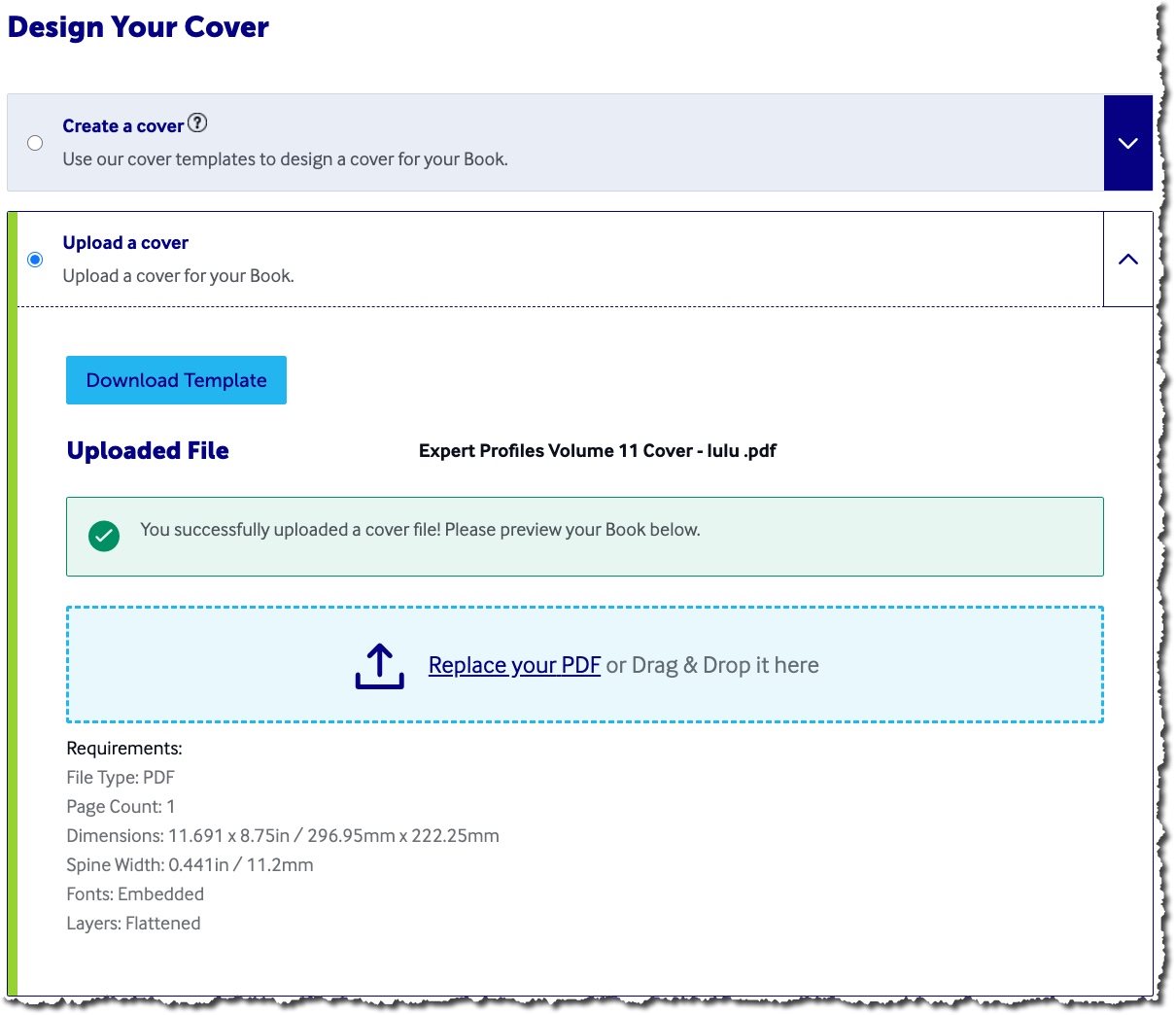
- Design Your Cover – Use Lulu’s Cover creator or upload a PDF. For this example, we are uploading a PDF that was created outside of Lulu.
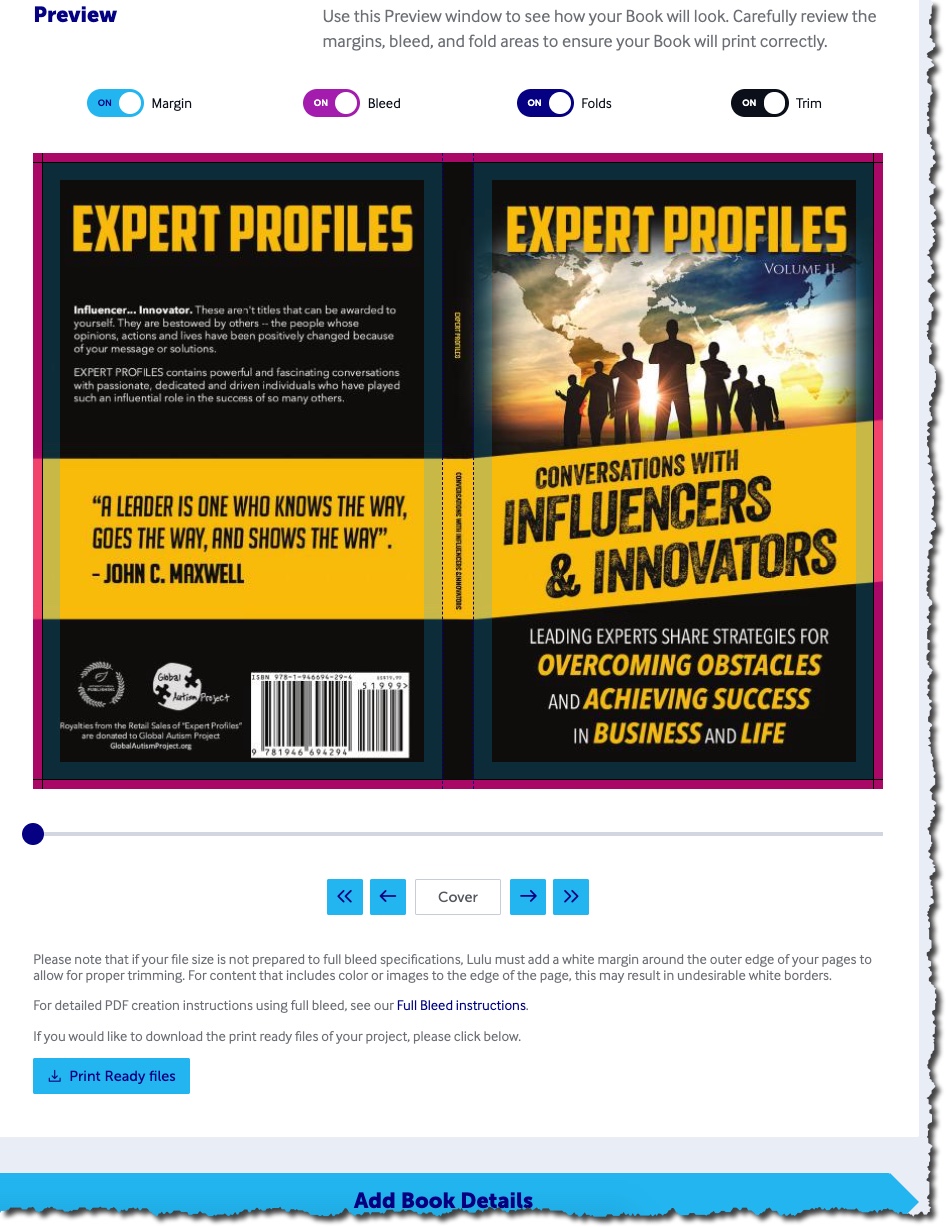
- Preview Your Book – Lulu’s new preview option is similar to Amazon’s page by page preview. Review the cover and ensure all text and images are within the margins. Go through each page of the interior file and ensure there are no extra or missing pages.
- Add Book Details – click to continue to the next section.
Promotional Information and Book Details
This tab will allow you to add a book description, contributor notes, the Table of Contents, Keywords & Categories, and a target audience.
Note: If your project is a direct access book, then most of the information on this page is not necessary. If you are publishing on Lulu for expanded distribution, then review these options to see what best fits for your project.
For this project, we are including the same book description we used on Amazon.
- Book Details – Add the book description, contributor notes (optional), and TOC (optional)
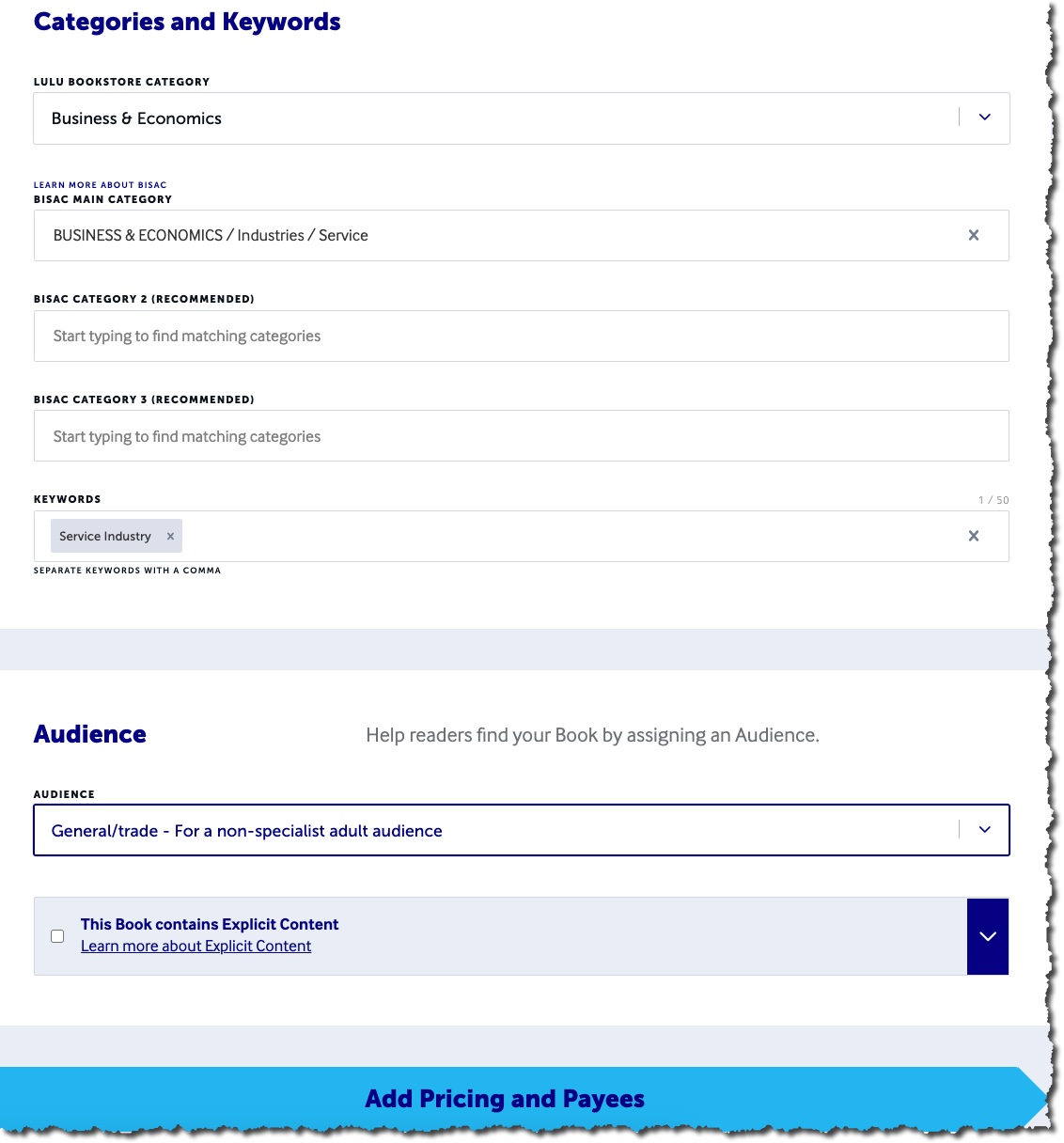
- Categories and Keywords – Similar to the categories and keywords on Amazon. Lulu requires that you select at least one Lulu Bookstore category, BISAC main category, and enter one keyword. Note: After you enter a key, hit the tab key to add the keyword to the field so you can continue.
- Audience – Unless you have a specific targeted audience, select General/trade
- Click on “Add Pricing and Payees” to continue to the next section.
Pricing and Payees
This section allows you to set the list price for your book and select who royalty payments are made to.
Set Price
Lulu provides 2 options for setting the list price of your book:
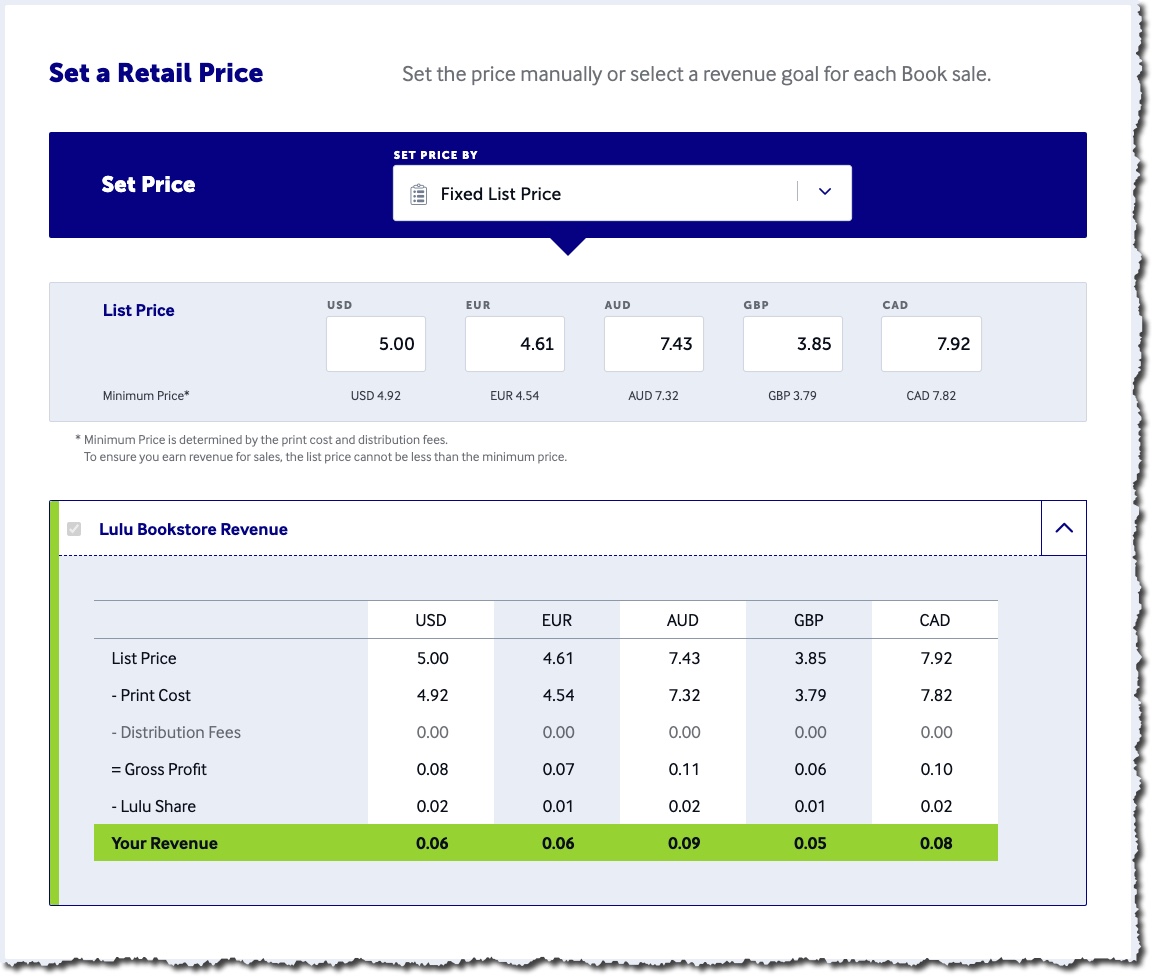
- Revenue Goal – Enter the amount you would like to earn from each book and Lulu will automatically determine the amounts for the other countries listed on the page.
- Fixed List Price – Enter the list price you want to charge. In this example, we are setting the price at $5.00 per copy. The fixed list price must be equal to or greater than the print cost plus distribution fees.
- Click “Final Review” to finalize your project.
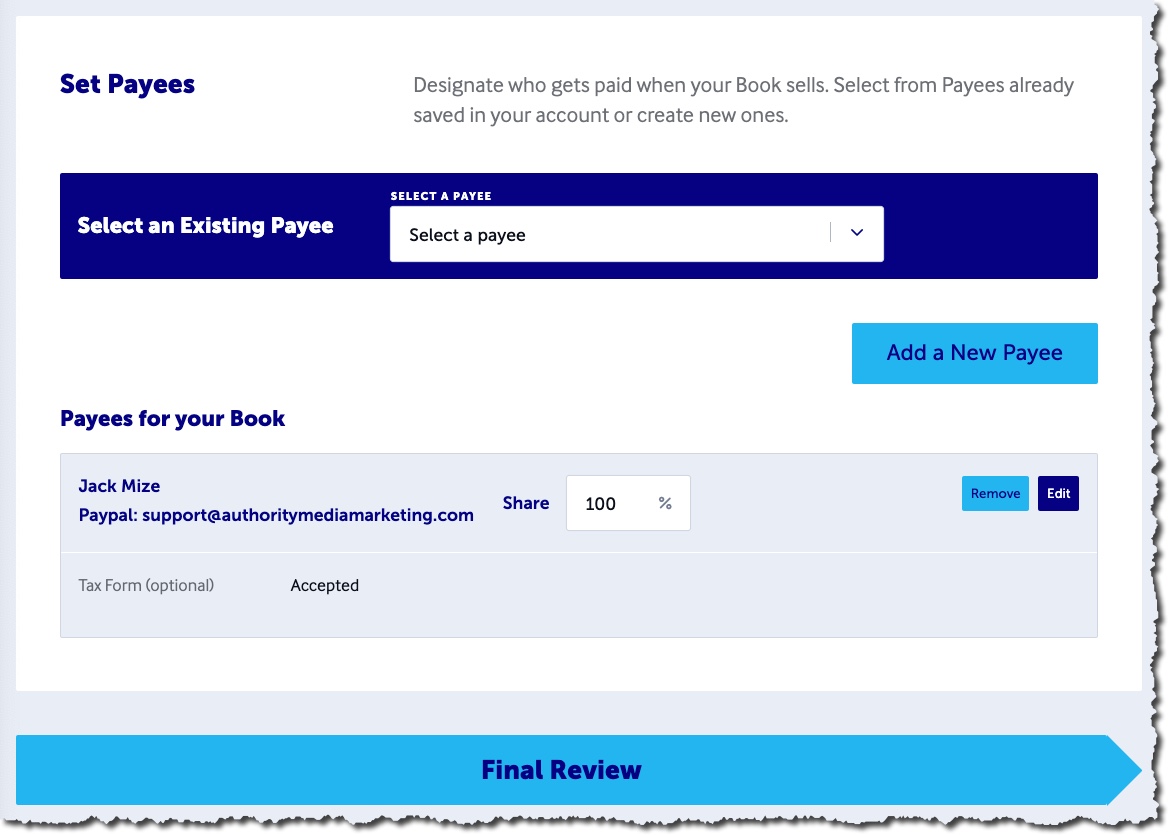
Set Payees
- Select the payees to receive royalties for this book. Note: The payee information must be uploaded to Lulu before you can select this. There may be a review period before you can select payees, so set this up before you plan to publish.
- Enter the share percentage. If only 1 payee, enter 100%
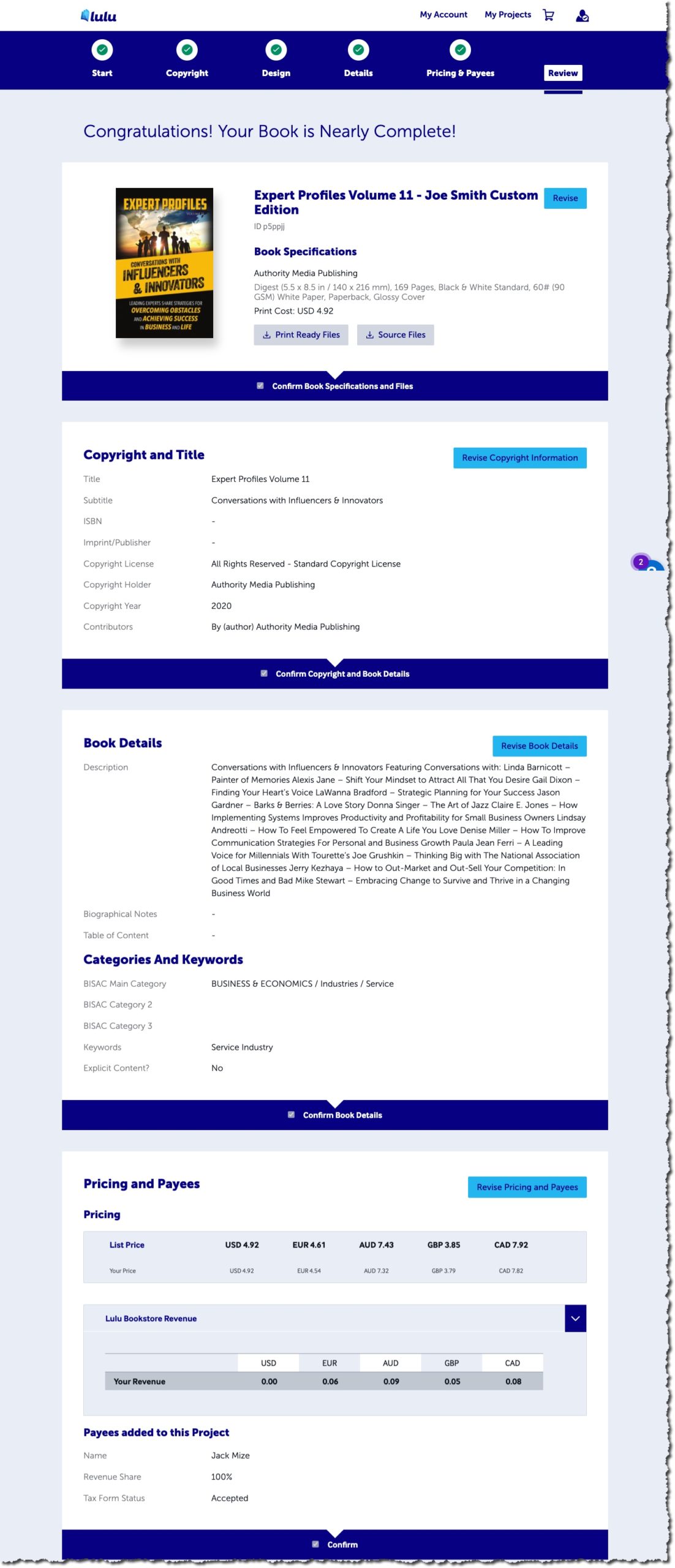
Final Book Review
This page will give you a quick overview of the information for each section. Scroll through the page and ensure the information is correct. Click the “Confirm” checkbox below each section, or select the blue “Revise” button to make any changes.
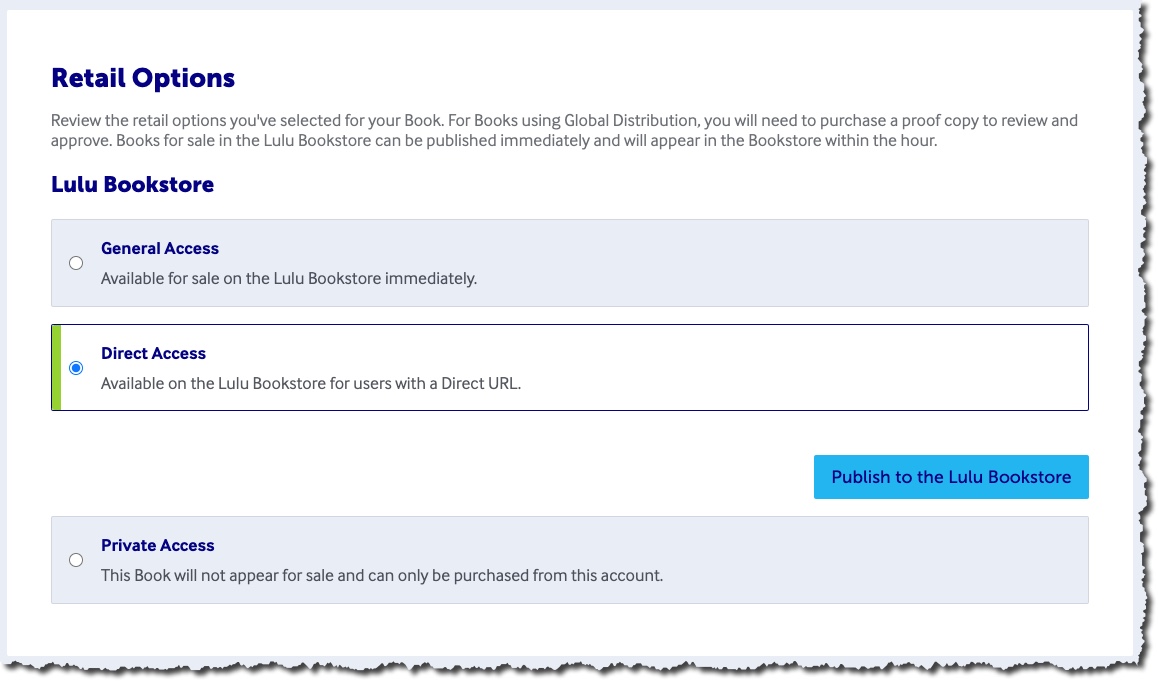
Retail Options
Select the desired Retail Option from the Lulu Bookstore.
- General Access – Available from the Lulu Bookstore and will be included when visitors search for book titles.
- Direct Access – Available on the Lulu Bookstore ONLY to users who have the direct URL. Books published as “Direct Access” are not searchable on Lulu.
- Private Access – The book will not be available to purchase outside of the Lulu account in which it was created.
IMPORTANT – When you select DIRECT ACCESS, you must click on the blue “Publish to the Lulu Bookstore” button.”
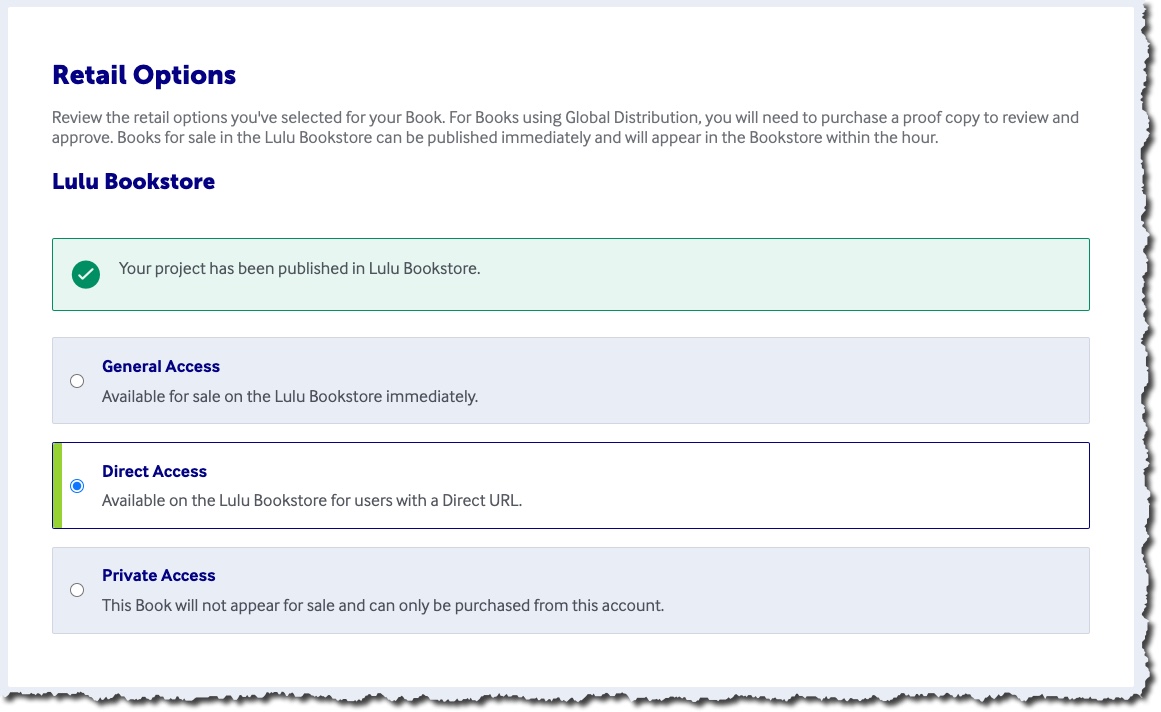
After you Publish to the Lulu Bookstore, you will see a confirmation screen that your book has been published.
Order Copies of Your Book
You can order copies of the book by clicking on the blue arrow labeled “Order Copies of Your Book” immediately after you publish your book.

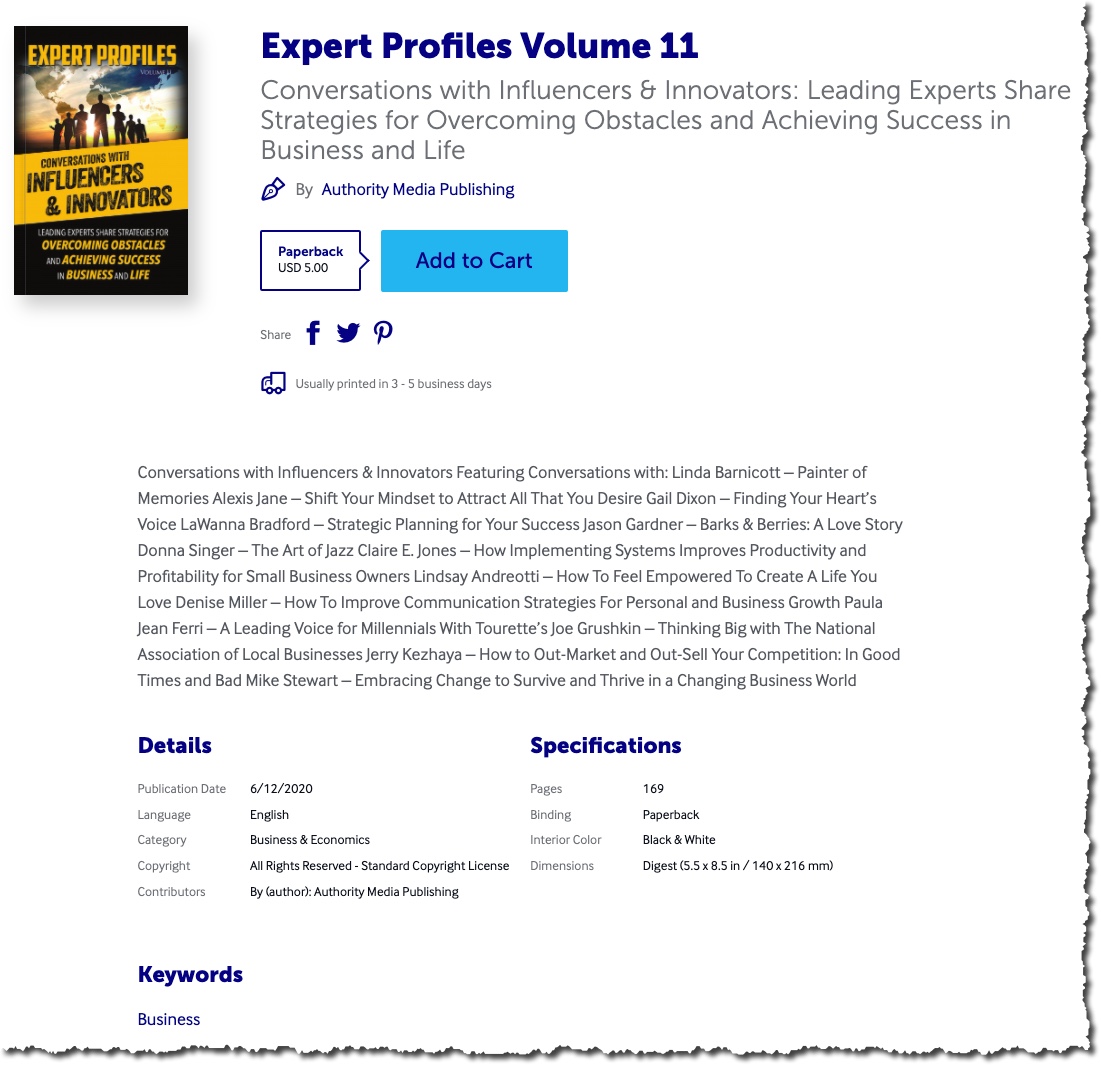
You can also find the Direct Access link by going to your “Projects” page on Lulu and clicking on “Add to Cart.”
Click on “Direct Access” to get a link you can share with others to purchase.